Vivek Pola
January 18, 2017
2 min read

Your Newton account allows you to access emails from all your accounts with a single login. So we can’t stress enough how important it is to be protected from unauthorised access. To make your Newton account more secure, we’ve added support for 2-step verification.
2-step verification adds an extra layer of security to your account, in addition to your password. The second layer involves a code that’s sent to your phone via Text or Call at the time of login. When you log in to Newton app on your phone or desktop, after entering username and password, you’ll be asked to enter a verification code before you see the inbox. So even if someone manages to steal your password, it is not enough to access your account. We recommend you enable 2-step verification for your Newton account right away.
Here’s how to enable 2-step verification:
- Go to the Newton Control Panel on our website.
- Log in using your Newton username and password.
3. After logging in, click on 2-step Verification.
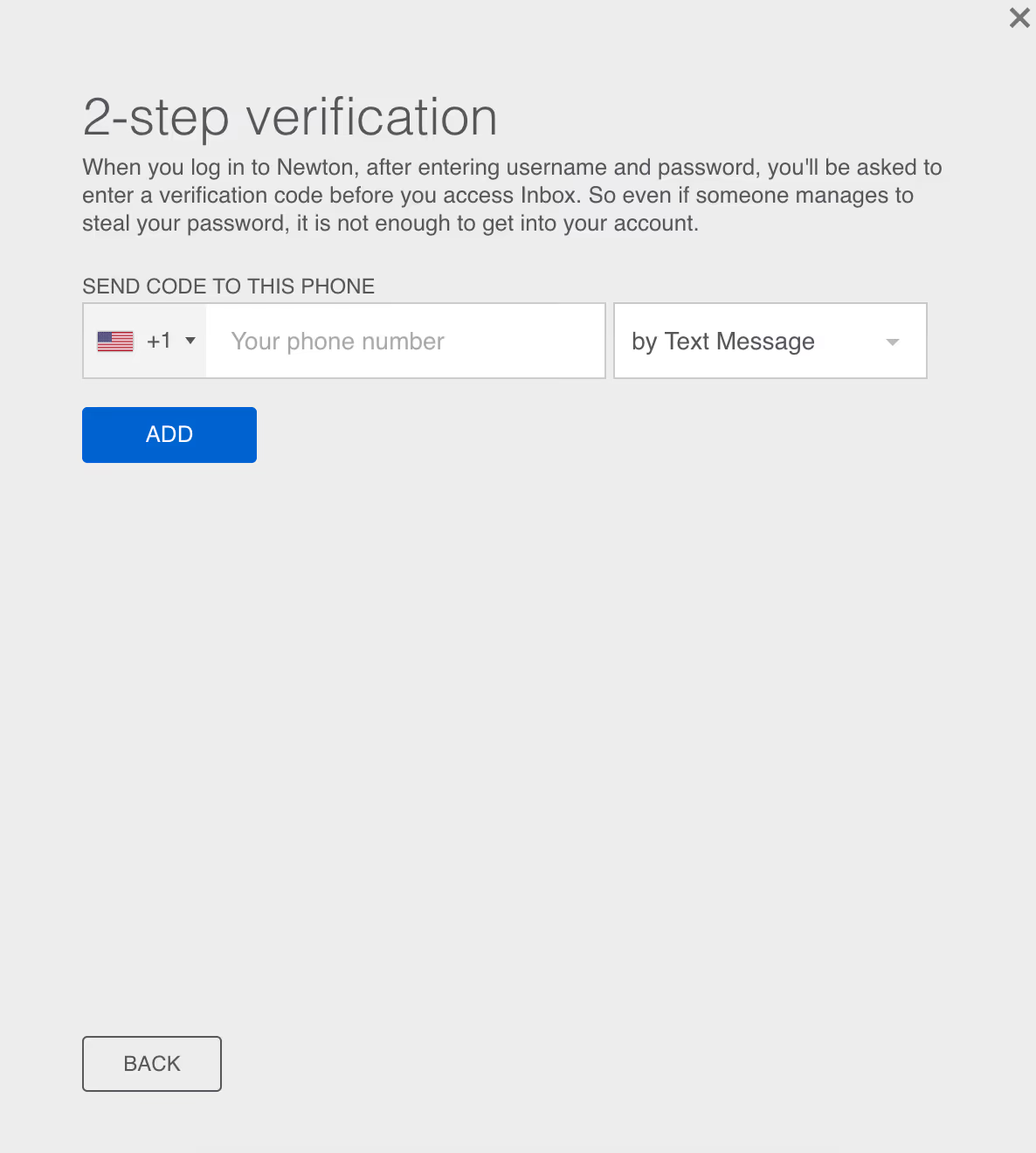
4. Enter your mobile number where you want to receive the verification code
5. Select whether you want to get the code via call or text. Text message is recommended.
6. Click on Add.
7. You’ll now receive a verification code on your phone via text message or a call as per your selection.
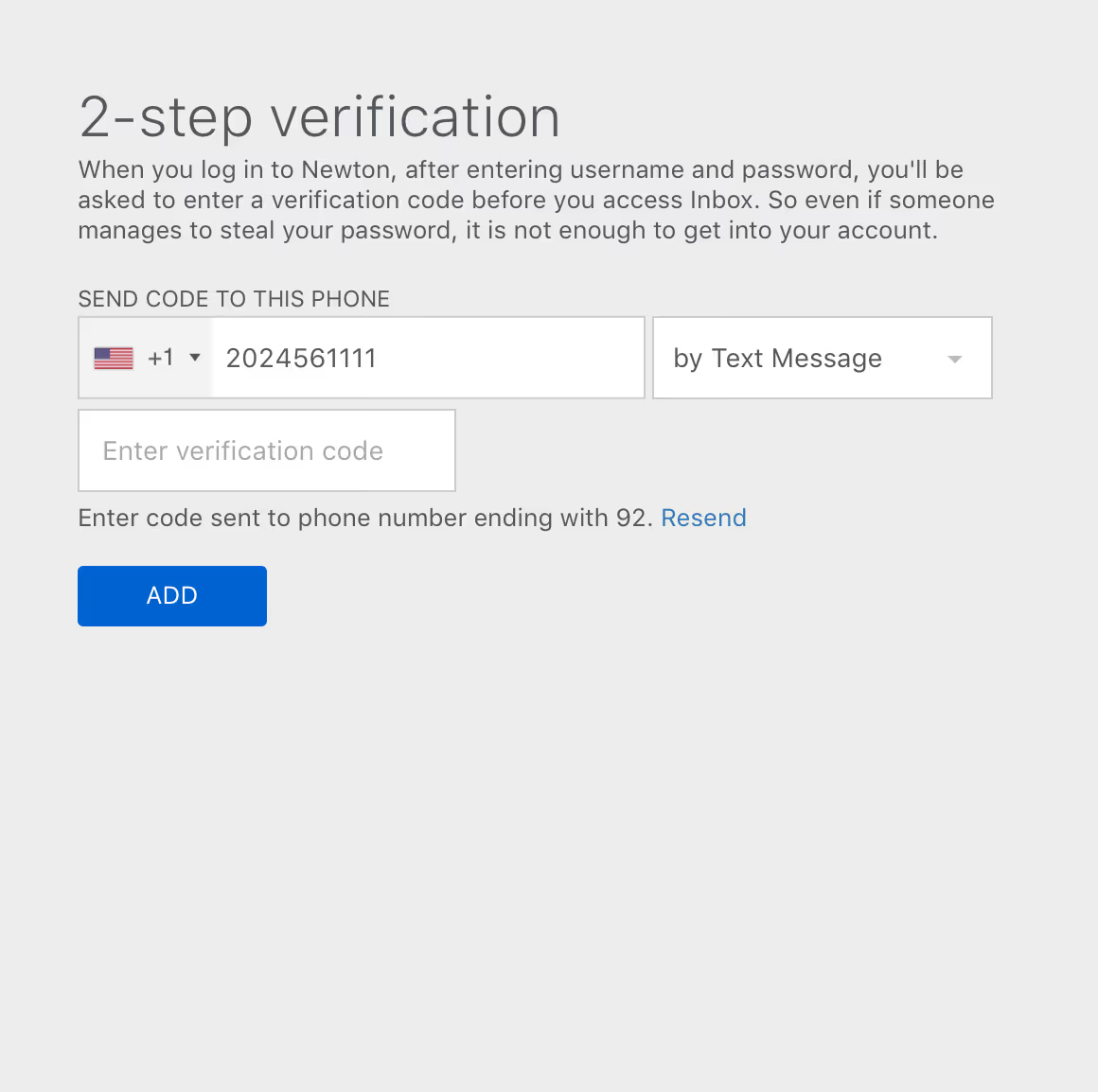
8. Enter the code and click on Add. This will enable 2-step verification for your Newton account.
9. A set of 8 backup codes are also provided that you can use to login, in an emergency, when you don’t have access to your phone. We recommend you to keep the codes along with your valuables at home. The backup codes are only useful to someone if they manage to also steal your password.
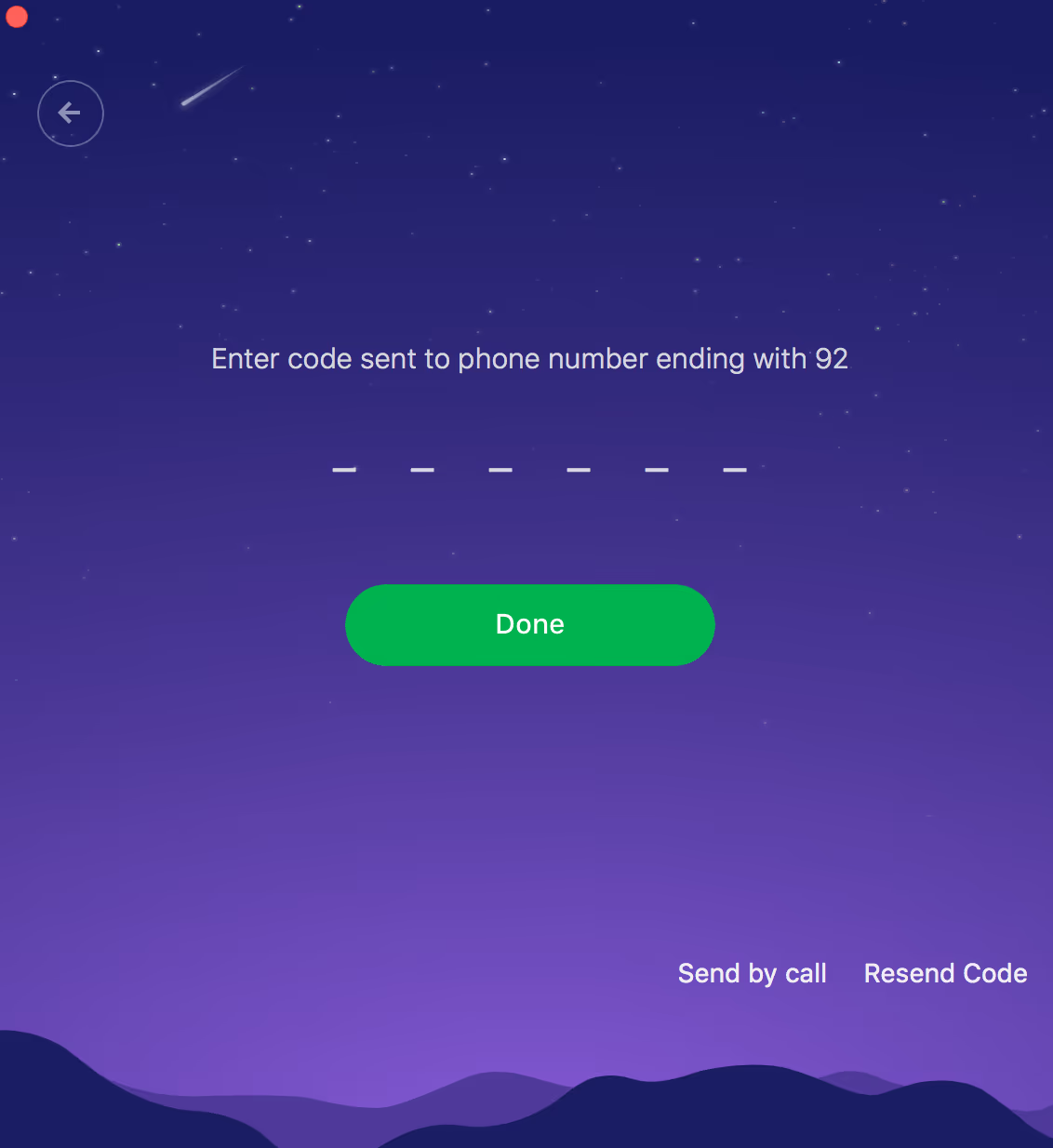
10. Next time when you log in to Newton, you will receive a code on your phone which you will have to enter in the app before going to inbox.
You can enable or manage your 2-step Verification information from the app too. Just go to ‘Settings > My Newton Account > Tap on 2 Step Verification’
Using Authenticator App?
If you use an Authenticator app to get codes, you can do that in Newton too. After enabling 2-step verification for your Newton account, just click on ‘Get Codes from Authenticator app’ and follow instructions to pair your Authenticator app with Newton.
We recommend you enable 2-step verification today to protect your Newton account from faceless monsters. If you need further assistance contact us at hello@newtonhq.com, we are happy to help you.
If you’re looking for a modern, powerful emailing experience, give Newton a spin.