Umesh Gopinath
March 6, 2018
4 min read
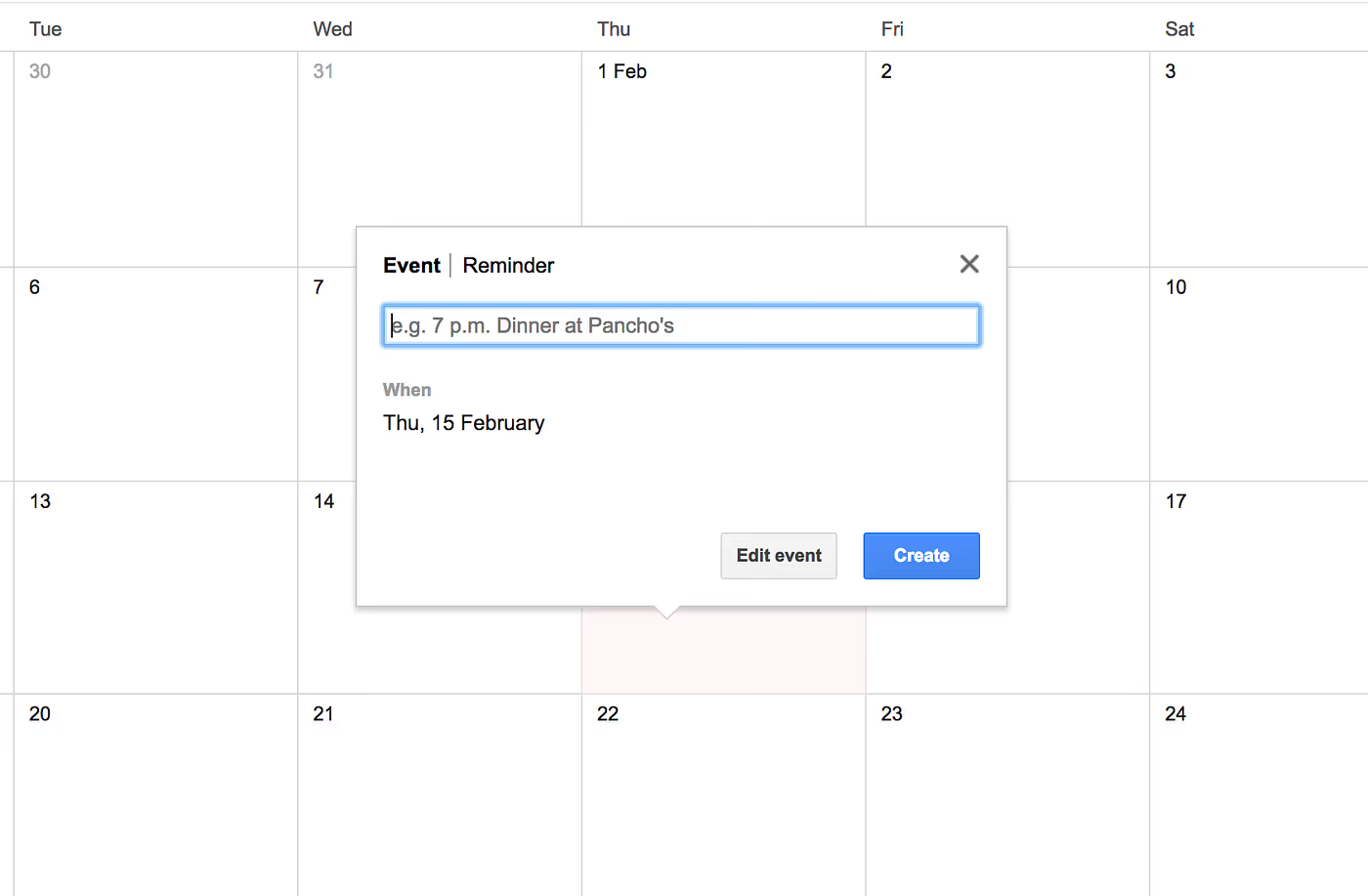
Google Calendar on web earlier showed a quick add text box when tapped on the date, into which I could quickly type the time and title of the event (7pm dinner at Pancho’s) and hit Enter. Anything more than that, I would click on the ‘Edit event’ button and go to a long form. Most of the time my events had just a title and time and the quick add option worked really well to quickly add events. For some reason the quick add box was removed from the new version of Google Calendar. It now shows a shorter form with separate title box and date/time picker fields. Takes more clicks to add simple events.
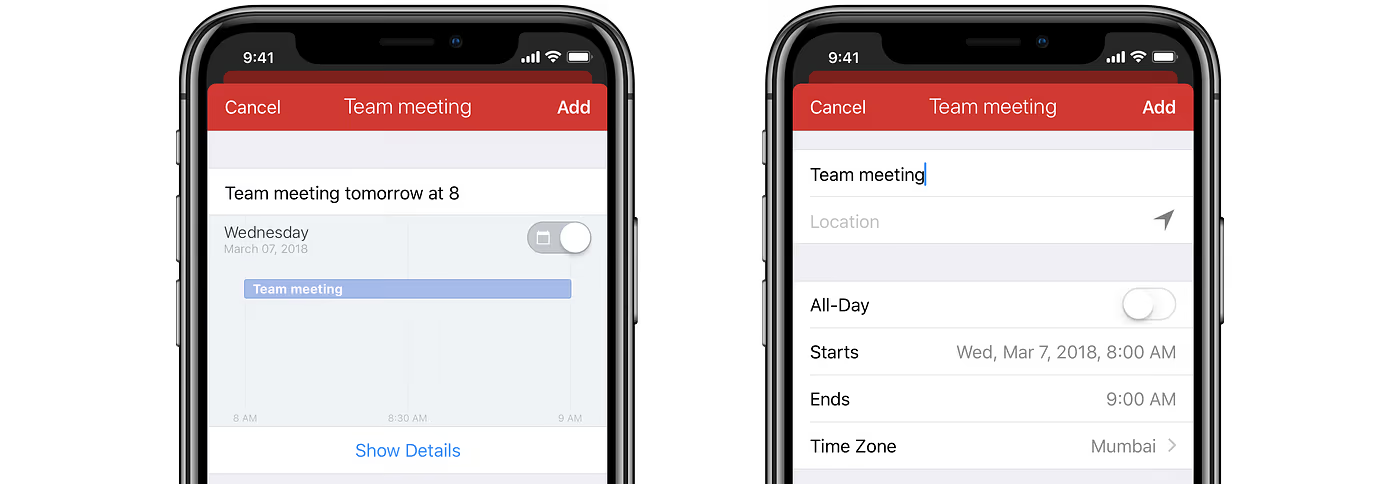
Fantastical also has a quick add box. I can type the title, date, time, location, repeat info, people info or even reminder info, all into that box and their Natural Language Processing (NLP) would interpret them pretty well. If I’m not comfortable typing a lot of details, I can tap on the ‘Show Details’ button to go to a long form; like Google Calendar.
I really liked a quick add box but never liked the long form to enter more details on mobile. I also didn't like the idea of typing everything into one small box on mobile. On mobile, it’s easier to type a bit and then tap on suggestions and complete things in chunks. Also we didn't want to invest a lot in NLP to figure out meanings out of whatever that’s entered. Another problem was, even if we managed to make the NLP work, we had to show the user that it worked. Like how in Fantastical, whatever you type in the box fly down to show a structured form to make the user have confidence in the system. But, as always, we wanted to have less things on the screen.
Even though in reality it’s not great to type everything about a complex event into a small text box on mobile, there was something nice to hear about it. It definitely sounded nicer than entering it in a long form. We wanted to explore more. Maybe there was something in between.
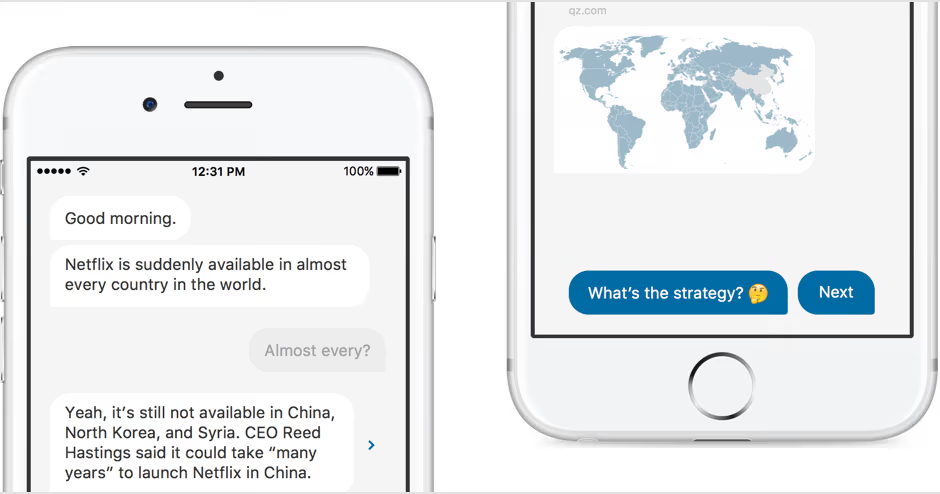
I was enamoured by the Quartz mobile app the moment I used it. It showed me news in a chat-like application. A chat bot asks me questions and I respond by tapping on the options it gives. Even though it was chat I didn’t have to type anything. So Clever! A news app with no lists, no details, no navigation and no suggestions. A chat app with no typing. Well almost. Actually on mobile you tap on many buttons to type. Here I just tapped on one button to reply. Is there something we could learn from Quartz? I thought.
What if we can make the user type the title and time and then tap on just one button instead of many to enter the rest of the details the best possible way on mobile? Almost same as typing, in any sequence, but assisted. Way better than a structured form.
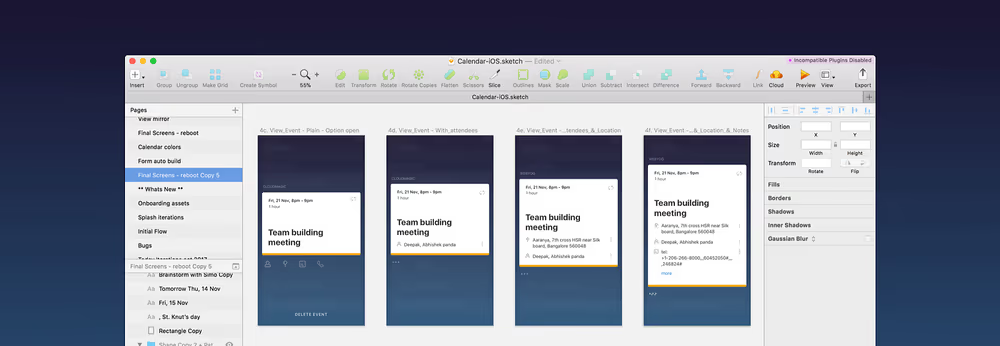
After numerous iterations, Rohit finally came up with this…
Umesh blog - f - Create, Discover and Share Awesome GIFs on Gfycat
See it in action. (Turn on HD in player settings)
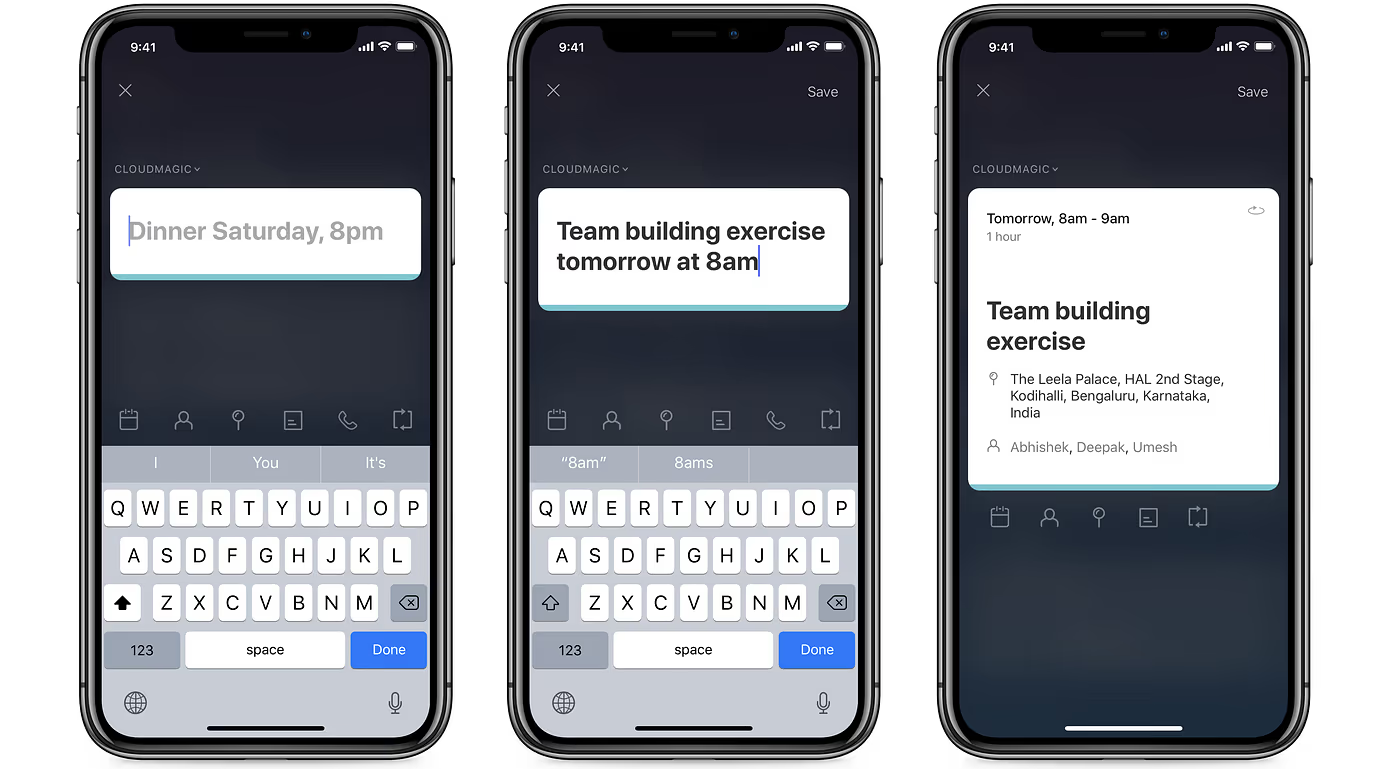
- A quick add box (Card) that will support typing title, date and time.
- For everything else, tap on the respective icon and continue tapping err typing in an assisted manner.
As you add more details they will get added to the Card. The card is the event and that’s what you save. If you want to change something on the card, there isn’t an edit button. Just tap on what you want to change in the card and edit.
We achieved a few notable Calendar UX goals by this design.
- Quicker. There’s just one route to create an event, instead of having to choose from 2 (type or form) like in other calendars.
- Convenient. No long form entries. One can enter details to the event in any sequence. Lot of preset options for quick selections.
- The user is confident that whatever she has entered is being interpreted right by the system. She is expected to type just the title and simple date and time in the quick add box. The hint and icons set the expectation well. Even if the user goes overboard with entering things, she will know where to stop after the initial playing around.
- Less clutter. Less things at any given point of time for the user to figure out.
- Something new :-)
It’s not perfect yet. As we took a different route for the create event part, there are many unknowns and while using the app we have identified some problems. Right now we are busy ironing them out. Also people missed the Event Reminder setting that’s currently shown when you flip the event card. We have our own reasons why it was placed there but it was a bad choice. We’ll now move them amongst the icons below. And there are more improvements planned.