Deepak Varadharaj
May 5, 2017
6 min read
Take 1
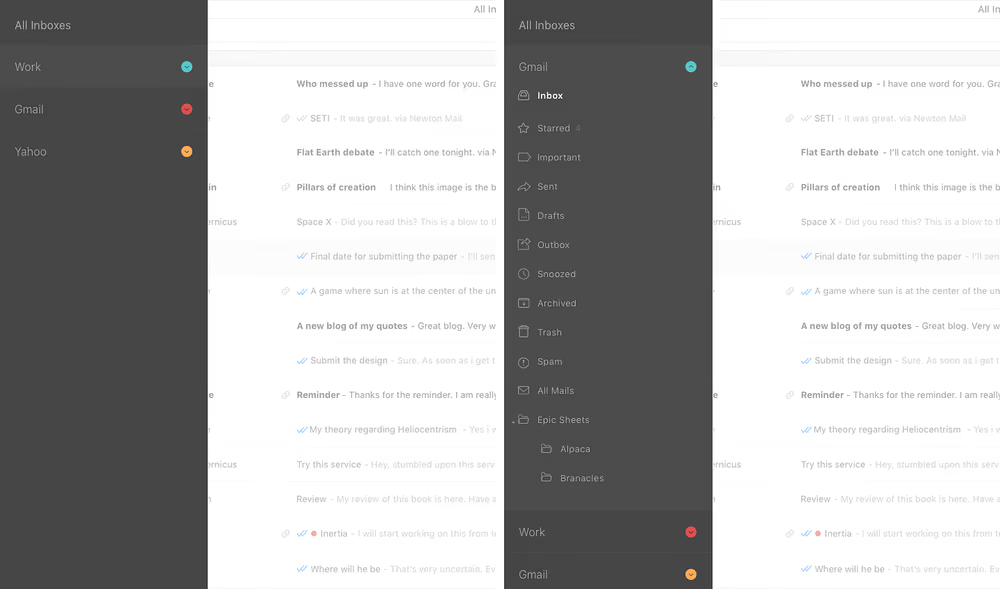
When we designed the the navigation drawer on the Newton mobile apps we had optimized it to be the best possible account switcher. Just one big tap to jump from one account to another. Folders were one tap away. We were so happy with how it worked, we decided to keep it the same in the Mac app too. Initial design explorations of the Mac app had the same nav drawer taken from mobile with some visual upgrades.
But quickly we realised that people accessed folders more on desktop and just making it good for account switching was not a good idea. The nav drawer was anyway hidden from the main screen and we had enough real estate, so not showing the folder list was not making sense. Also going from one account’s folders to another account was too tedious and mostly involved multiple clicks and jumps.
Take 2
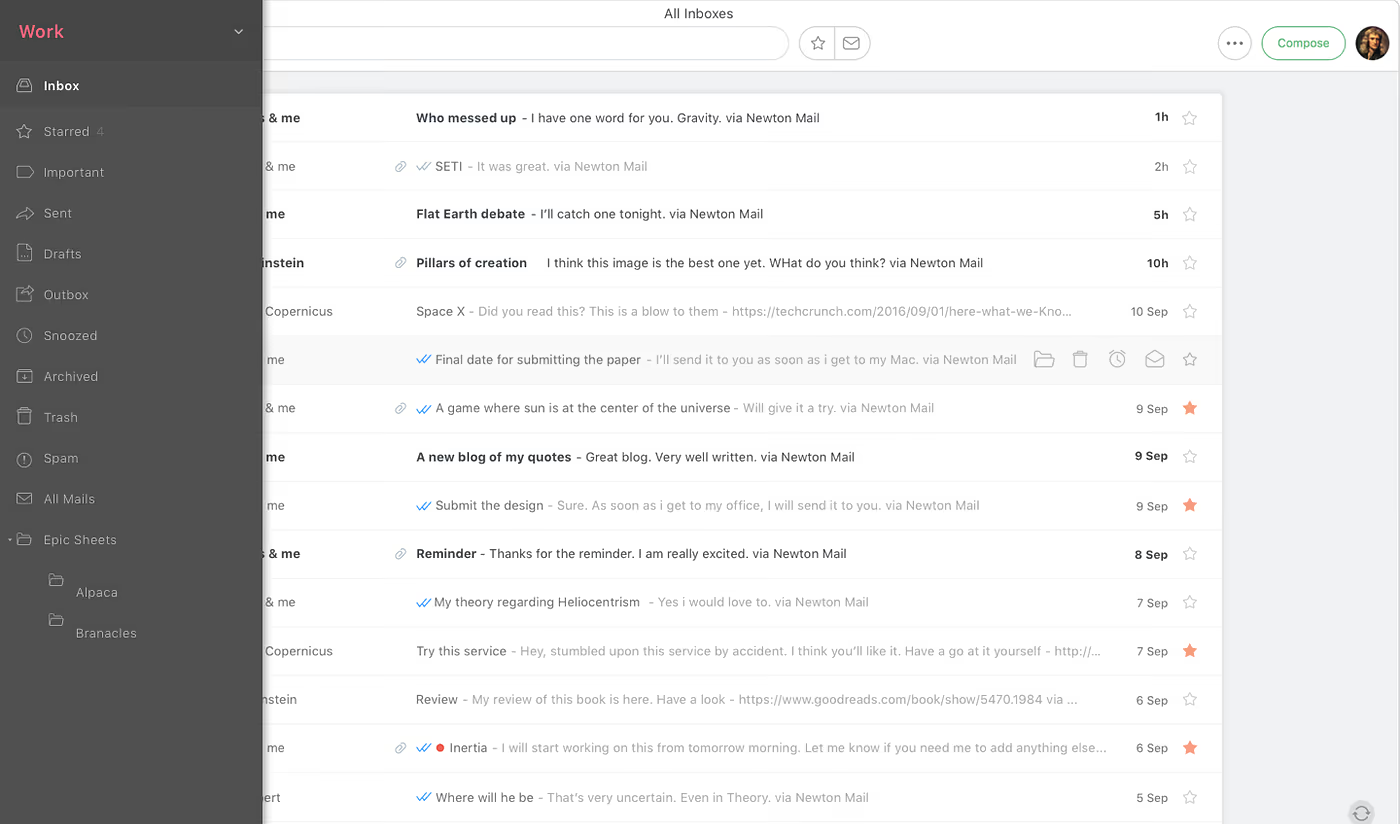
Umesh still didn’t want to compromise on the account switcher as it was working well. So we redesigned the new nav drawer to have an account switcher as a drop down and below it showed the folder list for the selected account. That way we still had a good account switcher and the folder list was not under more clicks. We went live with this one. As we had to rush to go live there were some things like keyboard shortcuts not done in the first version.
Feedback started pouring in. Everyone wanted the nav drawer to be open all the time, like other email apps. Some thought we were plain stupid. Some even sent us mocks on how to do it. Pressure started mounting on the design team to fix this. Umesh was adamant that we would not have an always open nav drawer. But we acknowledged that it had some real problems, some of those even we had started to feel.
- As the nav drawer was not shown always, the user had no clue if any new mail came into another folder.
- Big problem — there’s no way I’ll know if I’ve got new mails in other accounts unless I switch accounts.
- One had to always click on the hamburger menu to open the nav drawer to check the folders or again click on the account switcher to switch accounts.
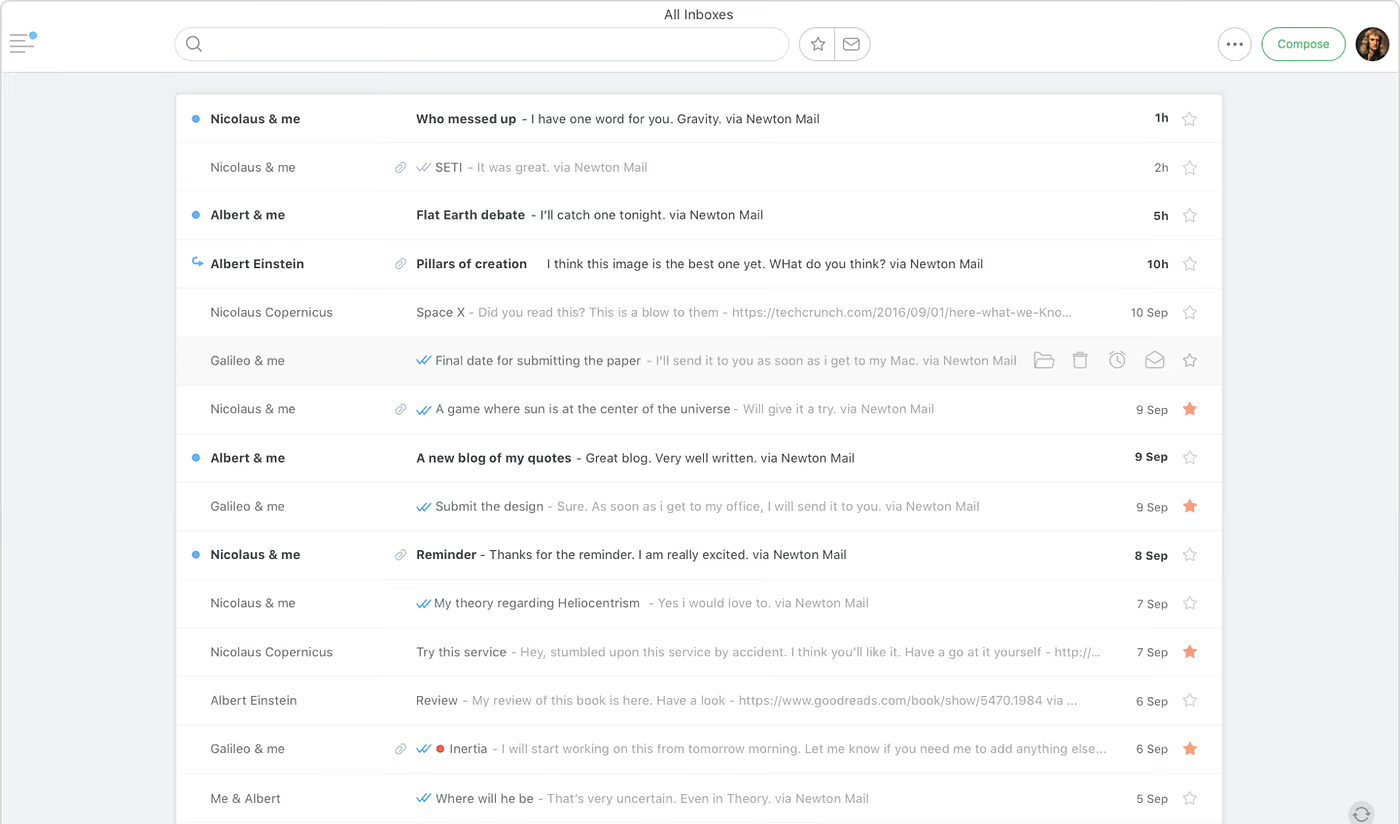
To solve the first problem we initially thought of having a bell icon next to our compose button which will have a red dot if there was something new. But we really did not want to introduce a notification center inside Newton. We show a blue dot in inbox next to unread emails. We thought it would be a better idea to show this blue dot on the hamburger menu as that’s where the user would go after knowing there’s something new. On opening the nav drawer we would somehow show the folders that got new emails. But how will we show if the update is in another account?
Take 3
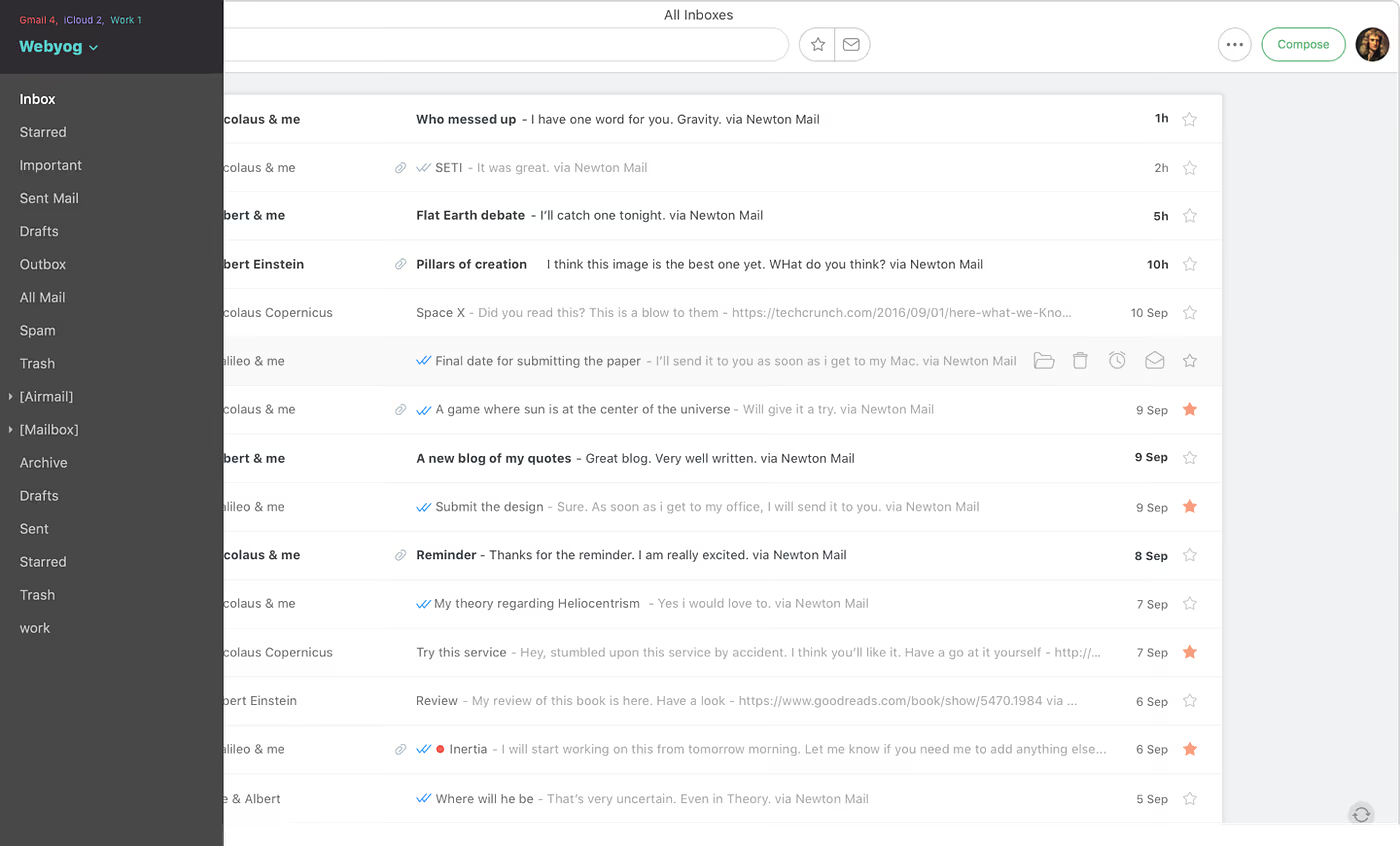
We started thinking how we can show updates in other accounts. Maybe show them as tiny text above the selected account name. Umesh thought it had legs, but I was not convinced. It was not scalable and also it was starting to look cluttered. It was creating new problems. I then thought instead of the drop down folder switcher, what if the folder list was on a new column.
Take 4
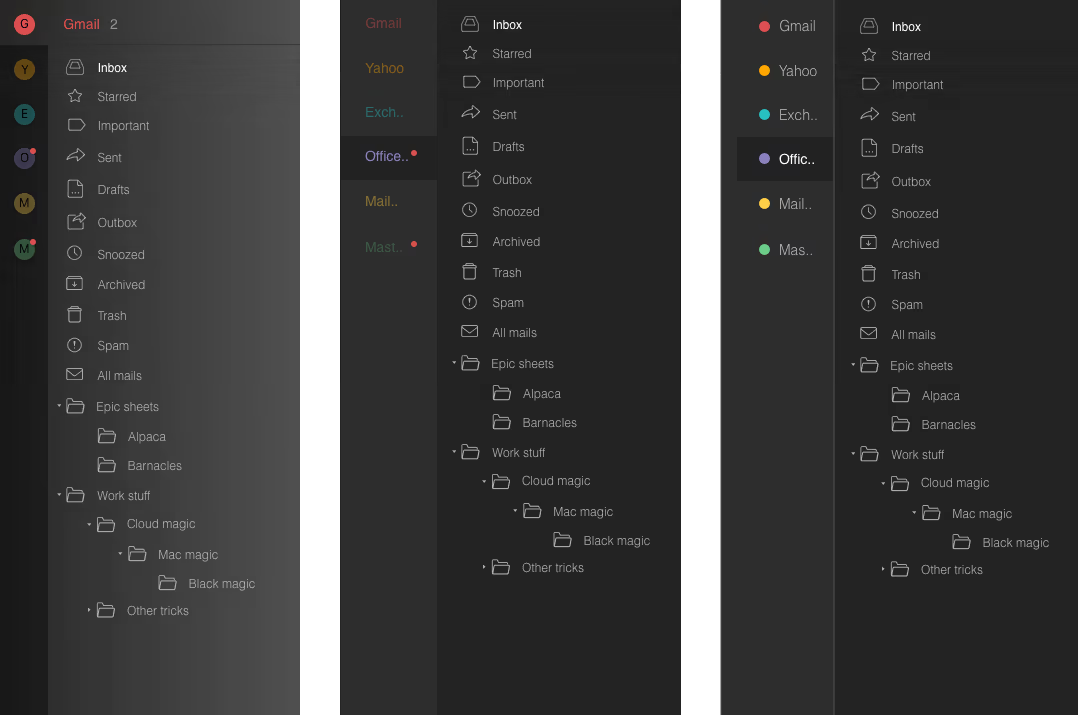
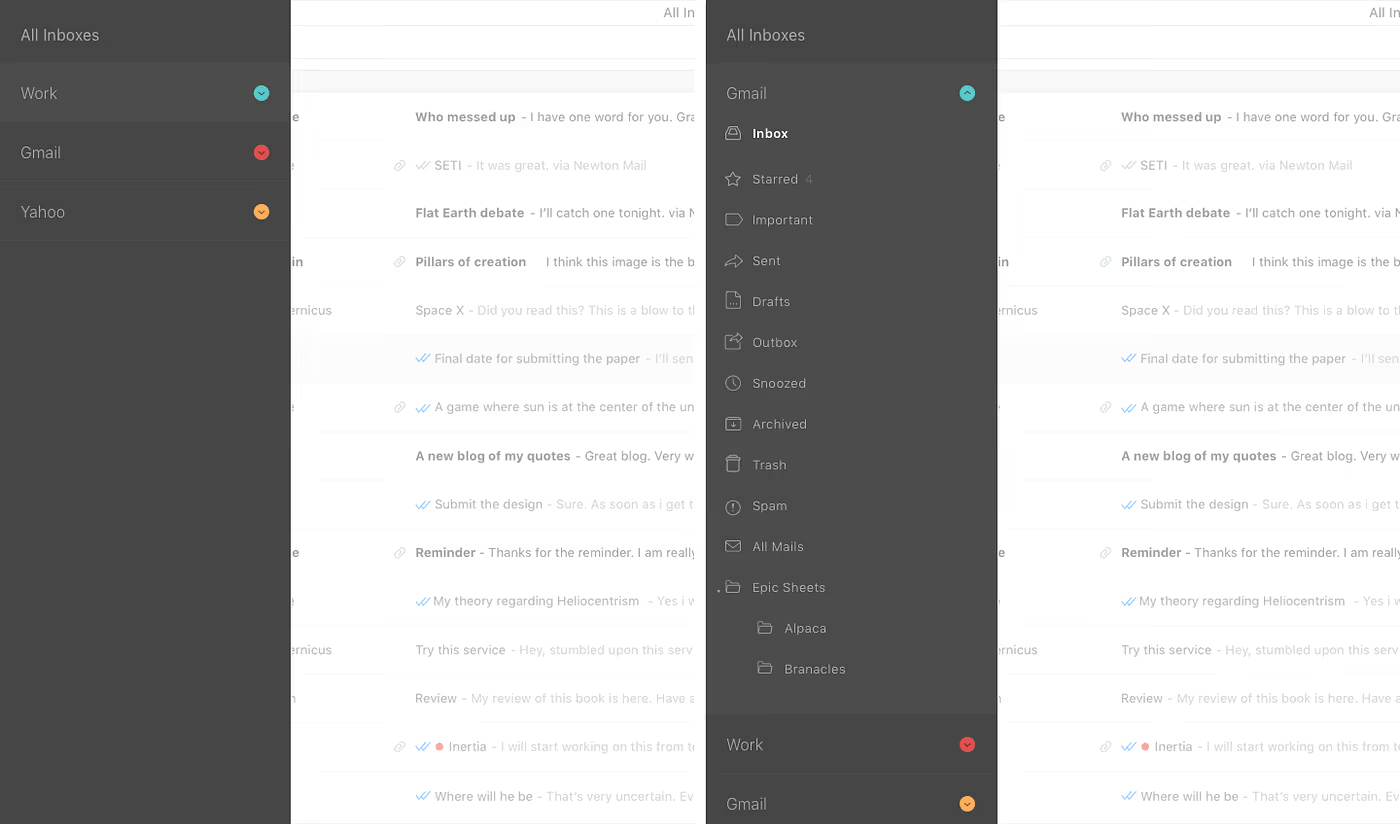
I split the nav drawer into two panels; account names on the first one and the folder list on the second one. So by seeing the blue dot the user would open the nav drawer and he would see if the update is in the selected account’s folders or in other accounts. We’ll highlight or flash the folder or account names to show the update. When the user clicks on an account, its folder list would be shown on the right side. This would help the user to have a quick glance at the folders list or just move the mouse out to the right to land on the inbox. This was avoiding additional taps which used to happen earlier. I took a quick opinion from Panda and Bhat, and both agreed.
I then proposed this idea to Umesh. Initially, he did not agree saying the 2 column layout was making it look cluttered. But I wanted to convey that our new model was working better on Mac. I took help from Panda and prototyped this design and showed it to Umesh. He was still not sure about it, but told us to go ahead and get it implemented with an option to roll it back if it was not working out. We got a separate build done with this new design. We used it and continued tweaking it for a few days and again showed it to Umesh. This time he liked it. He suggested some more tweaking to make it further clean by removing the folder icons and consolidating a lot of font sizes and colors.
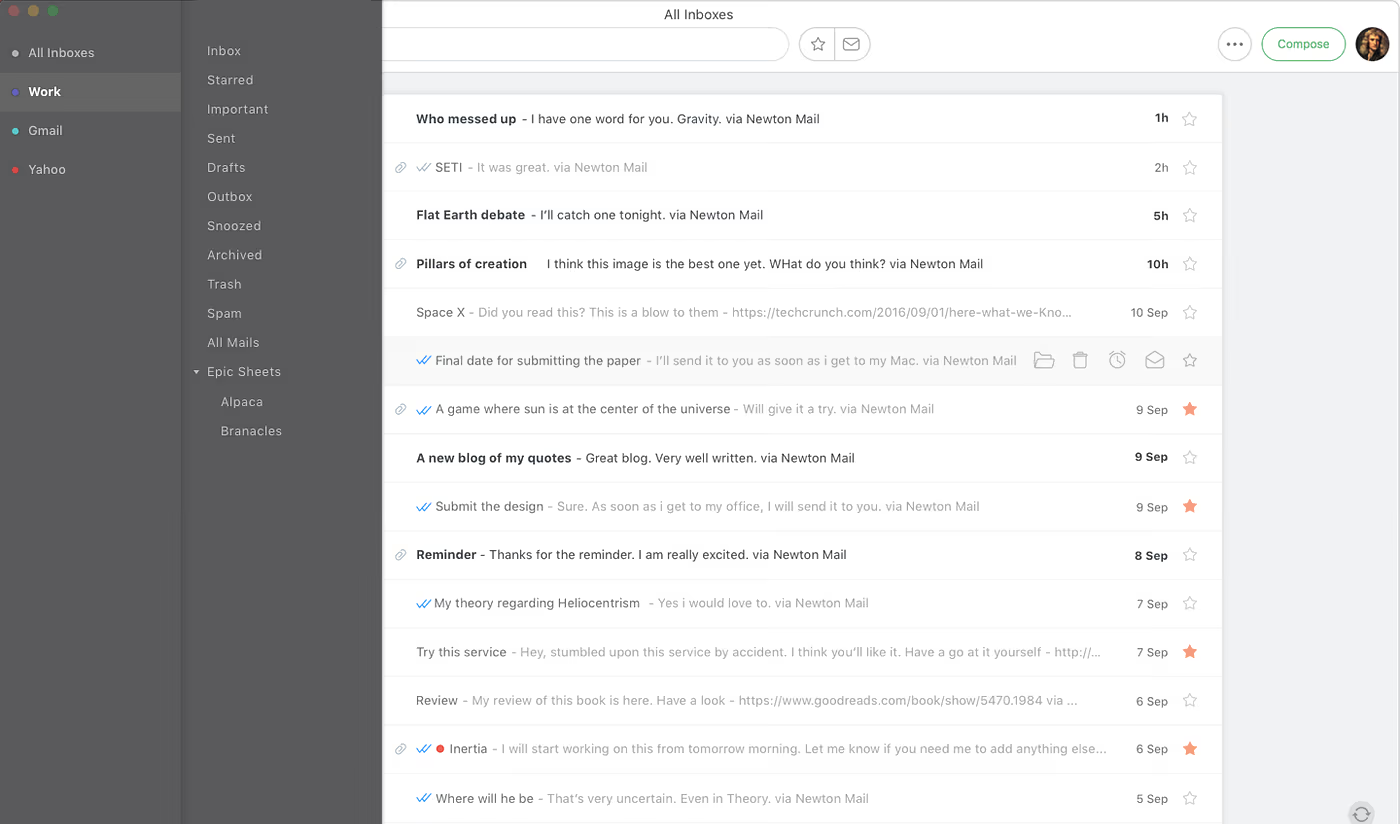
Making the navigation drawer more accessible.
To open the navigation drawer one had to point and shoot on the hamburger menu which was on the top left corner of the app screen. To solve this we added a thin hover area along the left side of the window. So if the window is fullscreen, throwing the mouse to the left would make the mouse stop on this hover area and bring the nav drawer. We also tweaked the height of the hover area so that it does not interact if the mouse is going towards the Traffic light buttons or Hot Corners. We also added Shift+S shortcut to open nav drawer when the window was not filling the screen. Also ⌘+1,2,3… to switch accounts without even having to go to the nav drawer.
This time we had a winner. People liked it. Even today we get one or two ‘I want to pin the nav drawer’ requests from trial users now and then, but they quickly realise it’s not required and the overall simplicity is making them enjoy their emailing.