Francesco D'Alessio
April 4, 2017
2 min read

Keep on top of incoming tasks and emails.
Wunderlist is one of the most popular task management applications in the world. Millions of tasks are created every single day, allowing people to get more done. Whether you’re starting a new project, or planning your weekend, our new Wunderlist integration will come in handy.
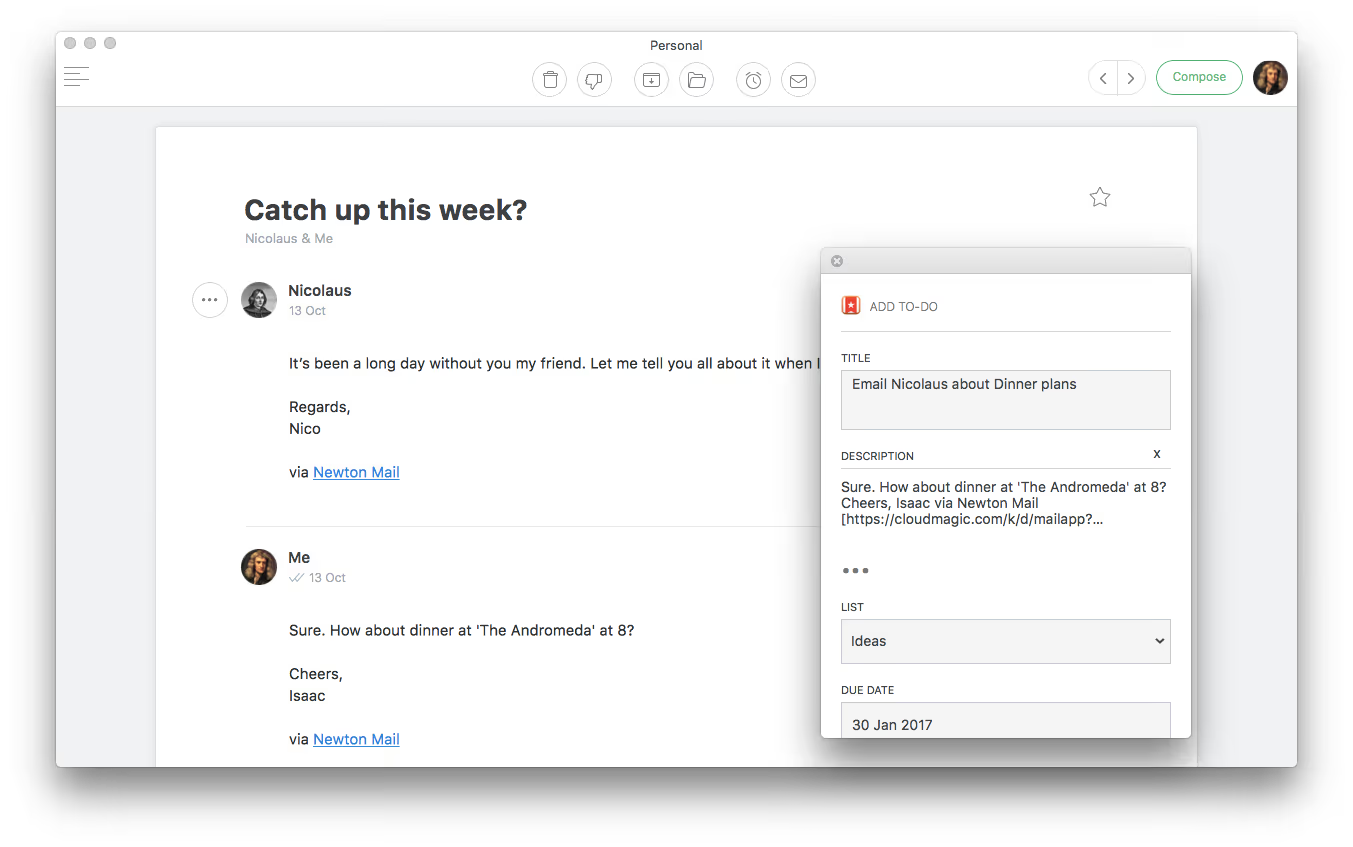
Here’s how you can add tasks directly from Newton to your Wunderlist projects and get more done wherever you are.
- On your mobile device/Mac hit the 3 horizontal dots next to an email
- Hit Wunderlist and sign into or create your Wunderlist account
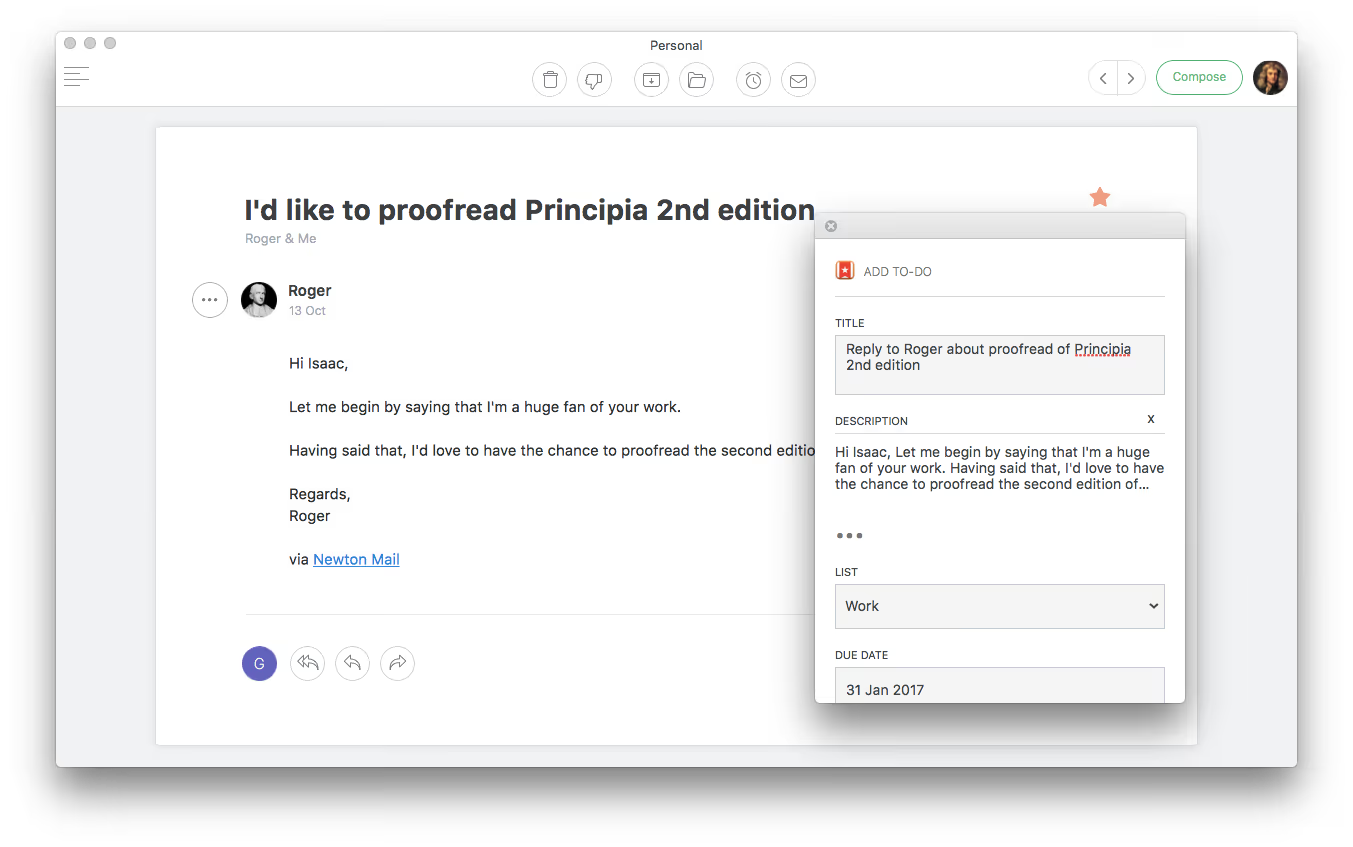
- Once set-up, simply save the email into your desired project and add the title of the task.
- You can also add a “remind me” date, due date, and priority level.
- Hit “add task” and we’ll send the task straight over to Wunderlist
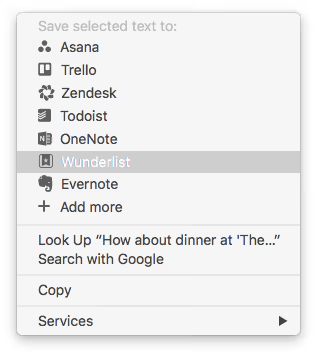
- Bonus: Highlight some text, right click and “add to Wunderlist”
Here’s how everything works on mobile and desktop, starting with desktop:
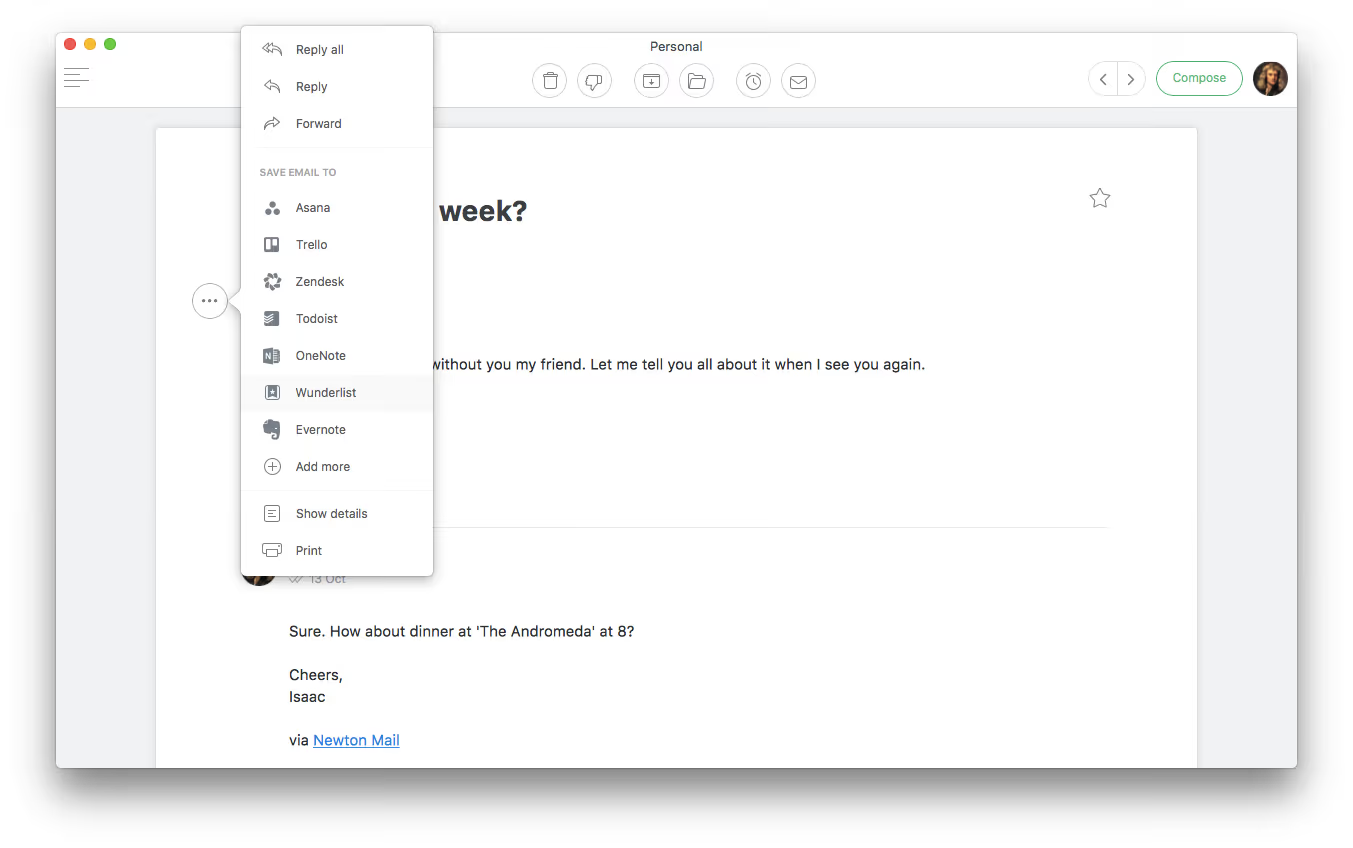
Here’s how Wunderlist and Newton work on mobile:
We introduced the Wunderlist integration in the last few weeks and found users love being able to save the best of their emails as tasks. Let us know if you have any questions about how to implement this.
If you’re looking for a modern, powerful emailing experience, give Newton a spin.