Francesco D'Alessio
October 16, 2017
4 min read
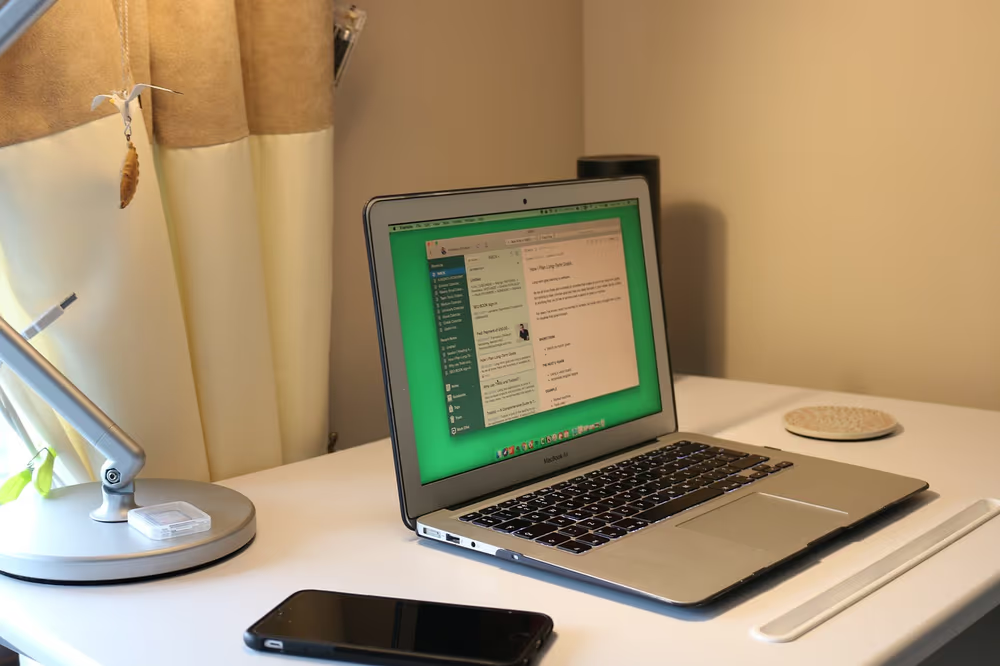
Evernote is one of the most popular note-taking applications in the world.
Over 100M individuals globally use Evernote as a workplace name for taking notes and getting things done.
After years of using Evernote (not as many as some), I’ve been able to pull together a lot of tips and tricks from the world of Evernote users and a few experiments that I’ve run in action, pulling that together for this feature.
Let’s begin with notebooks, and then clipping techniques.
Here are more Evernote alternatives to consider.
Notebooks
Notebooks are one of those elements of Evernote that help create order. Of course, you could live without them, but structure provides value by helping you keep proactive towards your projects.
As I always recommend, there’s no golden Evernote layout. You should mould this to your own layouts. One layout that has benefited me, from the marvellous Tiago Forte, is the 4-stack notebook.
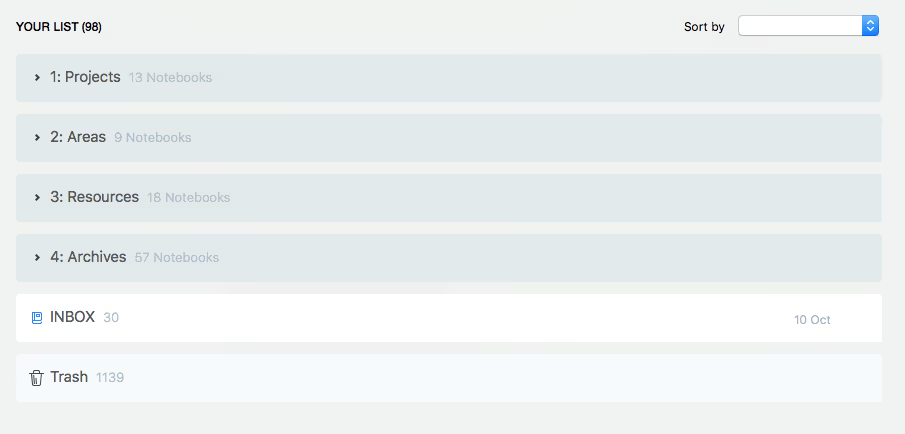
This might look crazy, but it really works!
Start by creating 4 core stacks inside of Evernote. Stacks are essentially folders for your notebooks, helping you bring notebooks together.
> 1. Projects — for projects live for up to 12 months.
> 2. Areas — for larger projects, up to 3 years in length.
> 3. Resources — for longer-term items, a collection of useful materials.
> 4. Archive — where projects/areas come to die. Saved for later.
ACTION: Find a 30-minute block to crafting your Evernote layout.
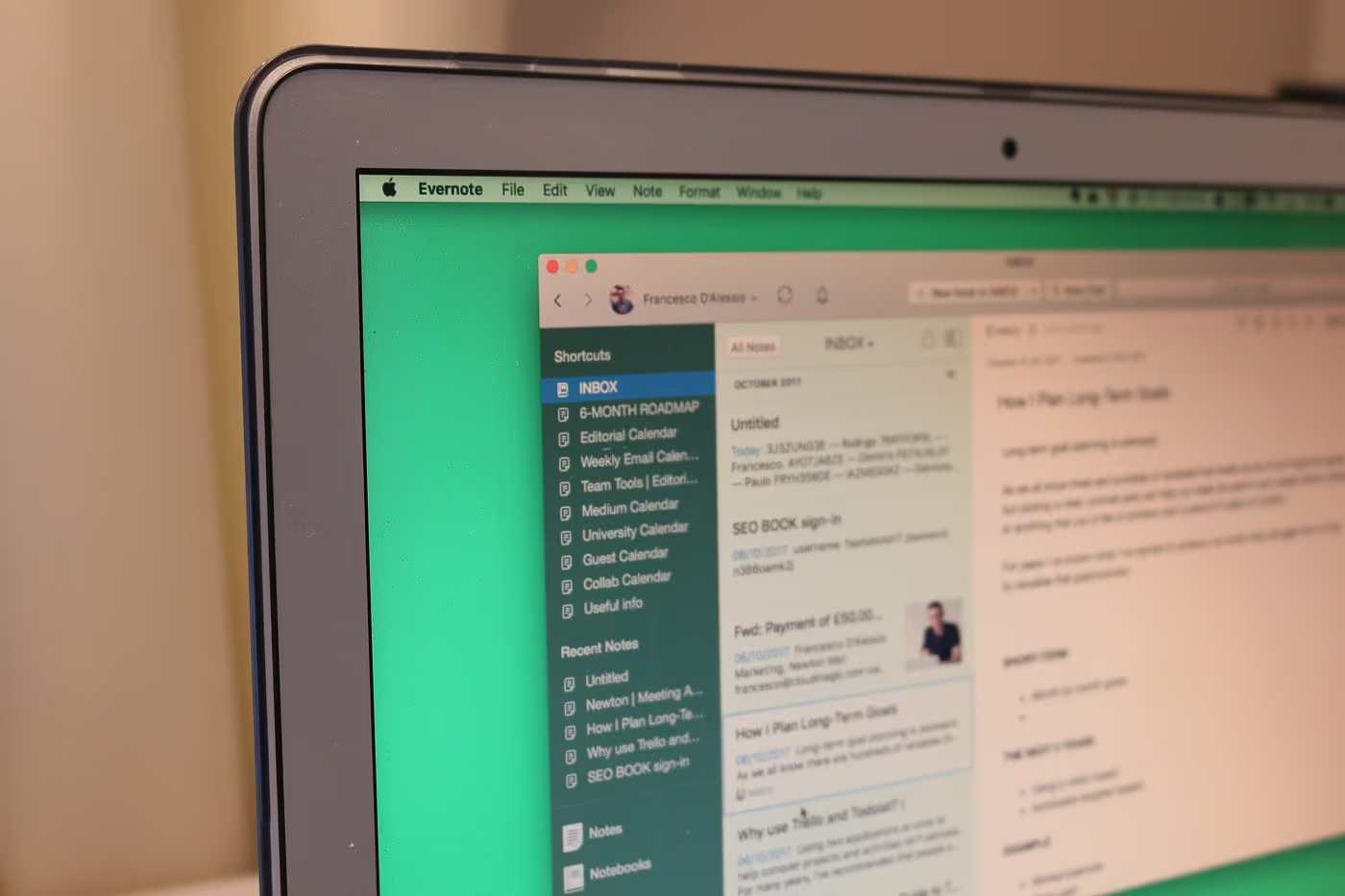
Once you’ve been able to set this up, you’ll save vast amounts of time and effort. Naturally, it doesn’t have to be this complicated. Try something basic like, correlating it to your needs, here’s one for a college student;
> 1. University — include module, class work, lecture notebooks
> 2. Career — include plans for the future, ideas, lists, CVs etc.
> 3. Social — includes travel plans, events, activities, weddings etc.
Starting out simple and evolving your layout into the more structured 4-stack layout could be an option for you and provide a starting point for getting things done. Access to notes and layout is very important, remember that!
Clipping
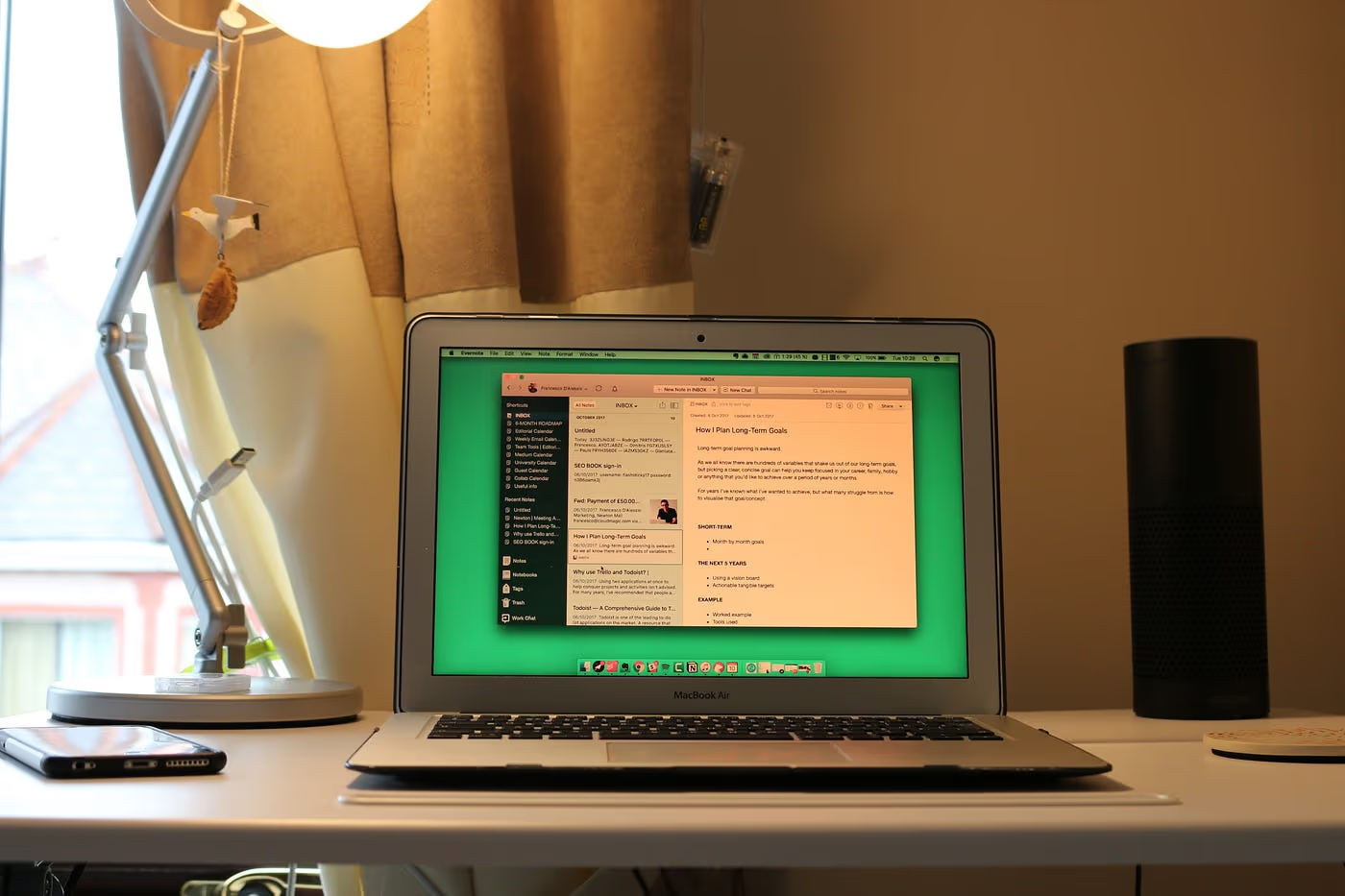
Capturing moments into Evernote notes is easy to do.
There are so many outlets that Evernote provide to users for clipping important documents, research, PDFs, attachments and images, easily with no stress. Let’s chat about a few of them!
You may have already installed the Web Clipper or aware of the email-in feature (now only available for Premium members) as a way to clip those documents/data/research into Evernote easily.
There are two fundamental methods within these tools that many people miss and are key to organising the data before it even arrives inside Evernote.
Many people use the Web Clipper across their day.
With a simple hit, they save to Evernote automatically. Great! But why not take an extra 23-seconds to add some context to each of the notes you save.
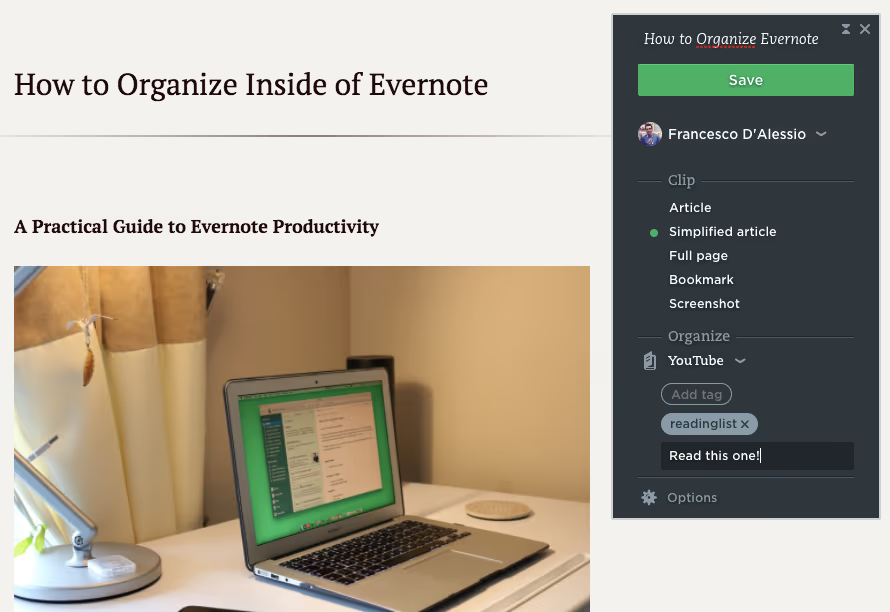
Adding the following context can save you huge amounts of time:
> Clip type — a range of options from screenshot to simplified article
> Add Notebook — Don’t dump this into your Inbox, add to a notebook
> Add Tags — Adding a tag will save re-organising this for later
> Add Remarks — A little note for yourself to remember the context
ACTION: Begin using the Web Clipper’s full functions.
Watch this full tutorial on how to optimise your Web Clipper use!
Emailing into Evernote is another way to clip items. One of the first things I used when starting an Evernote account was the Inbox abilities.
Here’s how to create an Evernote inbox:
> Create a new notebook or use an existing notebook
> Hit “options” and save this as your default notebook
> Once set, find your Evernote custom email in “account settings”
> Demo by emailing in a thread of emails with attachments to this address
Organising this content as it comes in can be brutal. Long email threads can sometimes cause a stir in your Evernote, I struggle with this even today!
Using email formatting you can save new notes with notebook, titles, tags, reminders and much more without leaving your inbox.
Here’s the full guide to getting started crafted by Evernote.
ACTION: Learn email formatting and apply to your next mail
There are many more ways to organise inside Evernote, using your own layout in Evernote is very important!
Try to replicate a previous success workflow that you have used into your Evernote account to save you time and effort, and adapt this every 3-months to continue to refine your efforts.
Looking for an email app that works with Evernote? Try Newton
Newton is one of the leading email apps on iOS, Mac, Android & Windows, providing powerful features like Read Receipts, Undo Send and even Tidy Inbox to reduce clutter, you’ll be at Inbox Zero in no time.