Francesco D'Alessio
May 25, 2017
4 min read

Having been someone who didn’t enjoy email, I’ve now come to enjoy the time I spend processing emails thanks to several functions and processes, all made possible by the gorgeous yet powerful email service — Newton.
In this piece, we’d like to explore a few of the features inside of Newton that you can be using to optimise your productivity. Newton is a very powerful email client and there is plenty to discover within all of its detailed functions.
Let’s begin with Inbox Zero:
Clearing Inbox
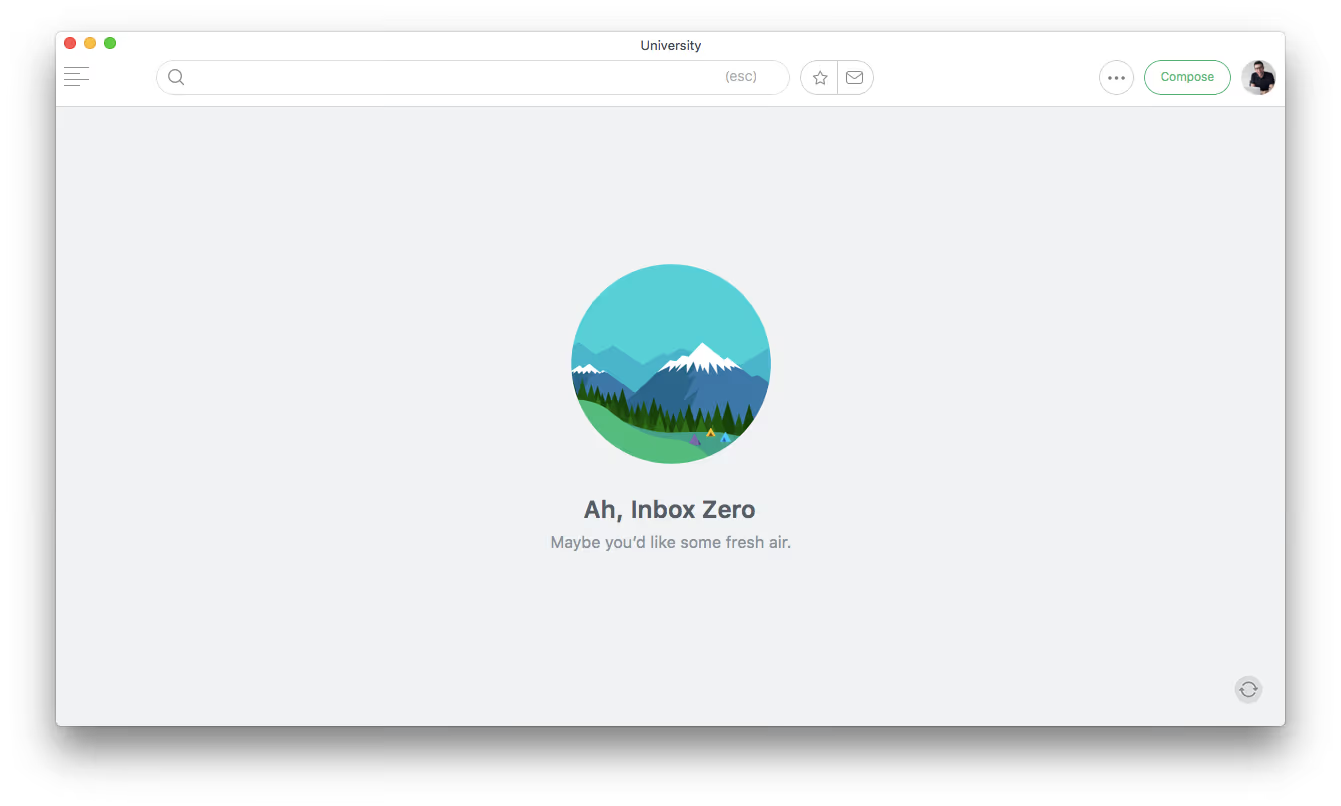
For those who don’t know, Inbox Zero is a strategy created by Merlin Mann to achieve a completed/empty inbox at the end of a working day. The goal is to clear out all incoming email and process them into tasks and activities.
For those using Newton, you will know of the “snooze” function and have probably used this in many situations. To achieve Inbox Zero, I use this feature to help snooze an email to appear later as I clear my inbox. The snooze feature has slowly become one of the many ways to defer an email until later when the context to answering that email is more relevant.
I snooze between 10–20 emails a day using the feature to help keep the inbox clear and to get to the highest priority emails.
Neat Folders
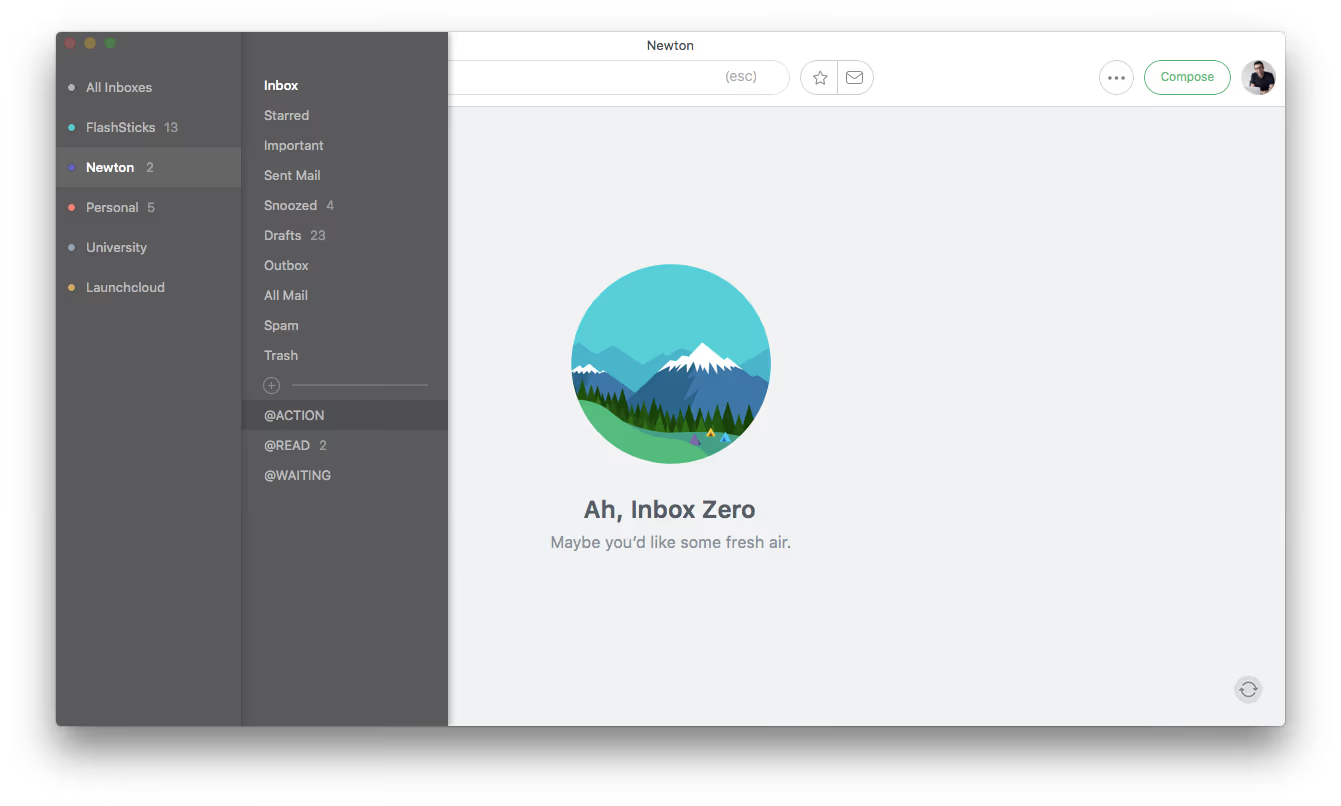
Folders inside my email are based partially on the book Getting Things Done by David Allen. I’ve created a very strict way to manage the location of my emails, combining that with sites like Evernote.
I have 3 core folders below my inbox.
They are named @ACTION, @WAITING and @READ.
@ACTION — this is used to hold an email as they are being actioned.
@WAITING — this is used to hold emails that await a reply.
@READ — this is used to help store any completed emails for reading later.
All used to help manage the status of an email and find for later using search. There’s not many folders outside of these 3 core email folders, as everything can slot into these sections. You can now create folders easily inside of Newton to help create a set-up like this.
Combined with this method of storing emails. I use STAR to highlight burning emails to pick up later in my inbox.
Keyboard Shortcuts
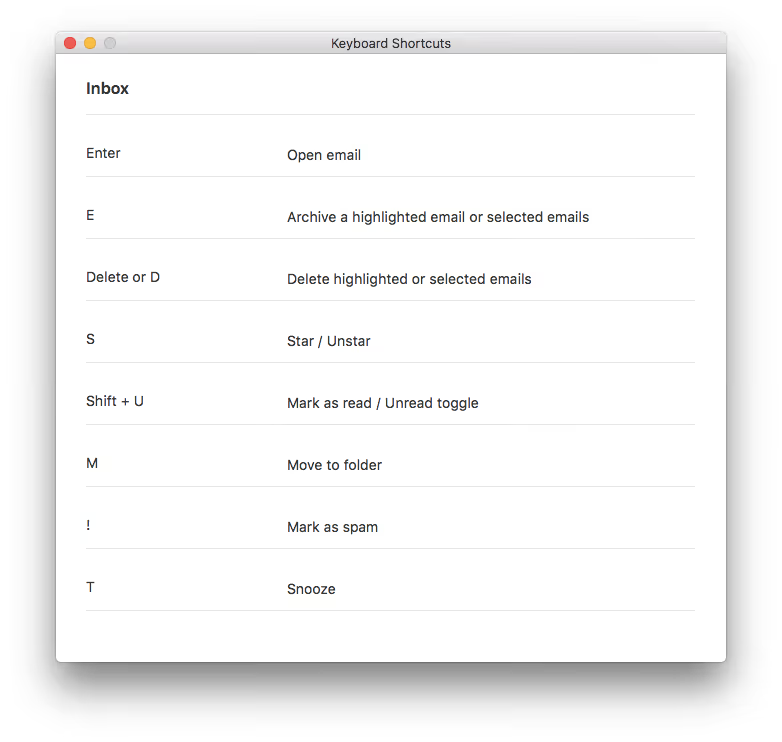
Shortcuts help us speed up our daily routines and habits. I know use the shortcuts inside of Newton to keep on top of the cleaning of my inbox.
These are some of my most used keyboard shortcuts to help me keep productive across my day. There are many many more, which you can explore by hitting ‘COMMAND +’.
⌘ + F = search
M = move to folder
⌘ + N = create new email
RIGHT + LEFT = Scroll across email
SHIFT + S = Open Sidebar
⌘ + 1–9 = Switch accounts
A list of all of the available shortcuts is here to explore all of the fantastic ways to easily process your email outside and inside your inbox.
Todoist & Evernote
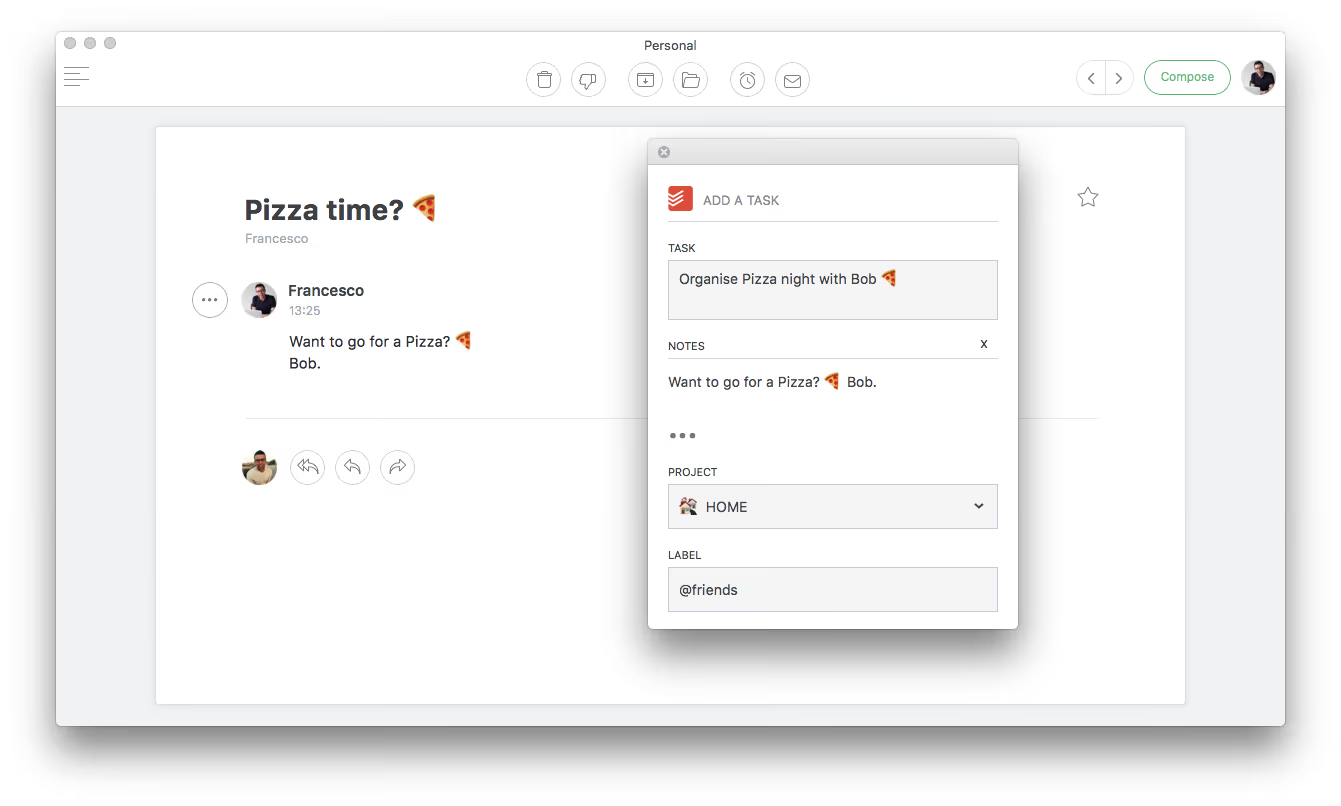
Inside of Newton, I use both Todoist & Evernote on a regular basis.
For Todoist, clipping a task/link is normally the goal. I use the Todoist integration to quickly send information to my account for processing later. Most of them go to my inbox, however I use the integration to send to-dos to my projects list too.
For Evernote, clipping articles, links, documents and more helps me to keep productive as I clear my inbox. Sending everything to a storage location helps to find documents and information for later use. Connecting Evernote is easy and allows for easy notebook and even tag clipping without leaving the inbox.
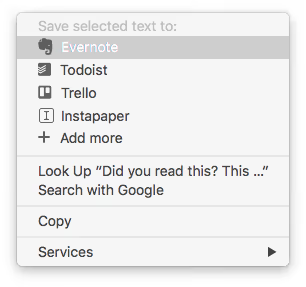
Everything going to Evernote tends to go straight to my Evernote default notebook which is also my inbox. There are many more integrations for Newton like Asana, Trello, Wunderlist, Salesforce and more to help you keep on top of important tasks and data.
If you’d like to know more about how to optimise your Newton inbox, let us know in the comments, we’d love to hear from you! Plus, if you enjoyed these inbox tips, shortcut recommendations and integration workflows, hit the ❤ below.
Start the 14-day free trial to experience all of the powerful functions inside of Newton. Available for Mac, Android and iOS devices. Try today!
Follow our Paper Planes publication on Medium