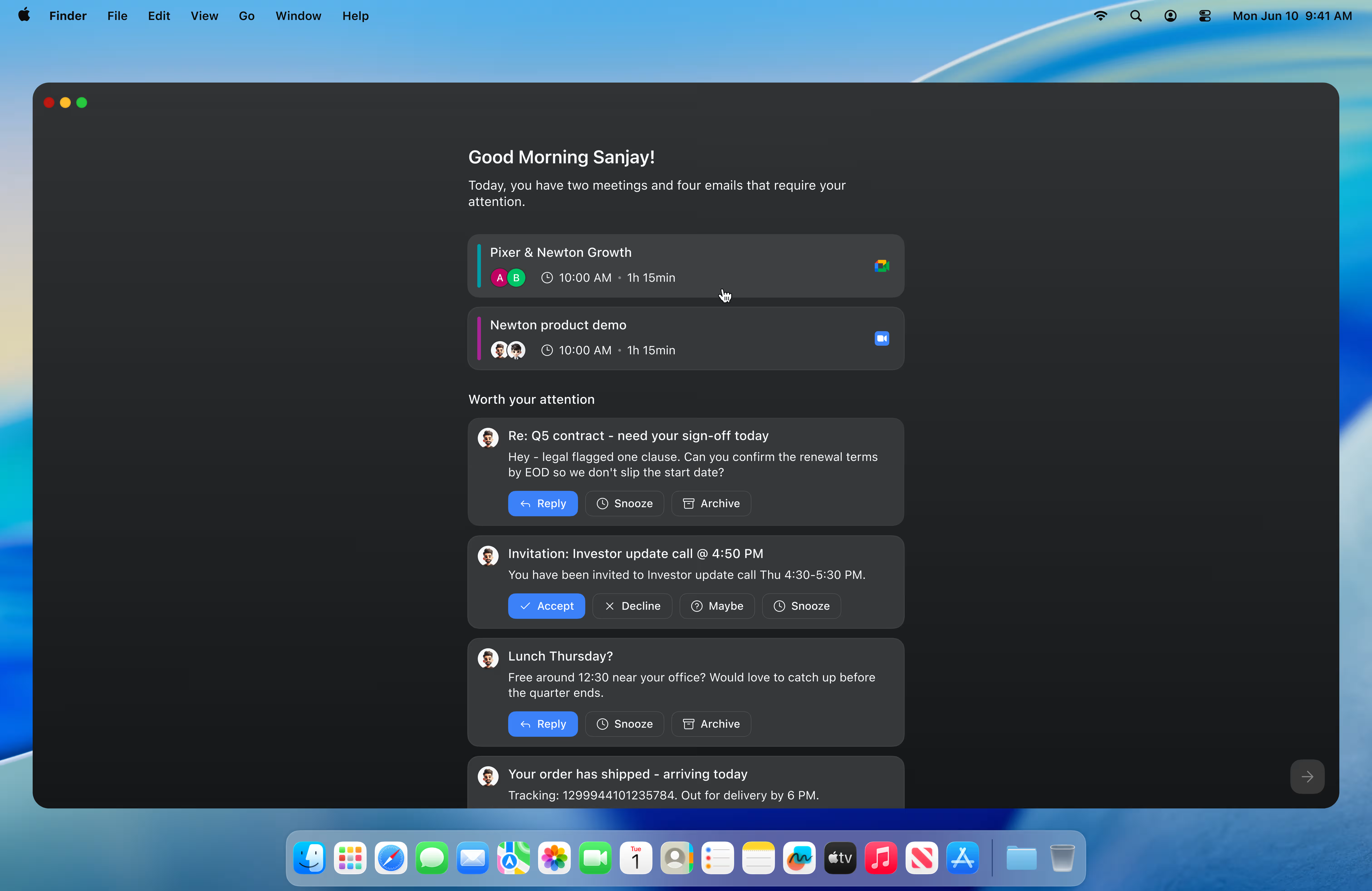
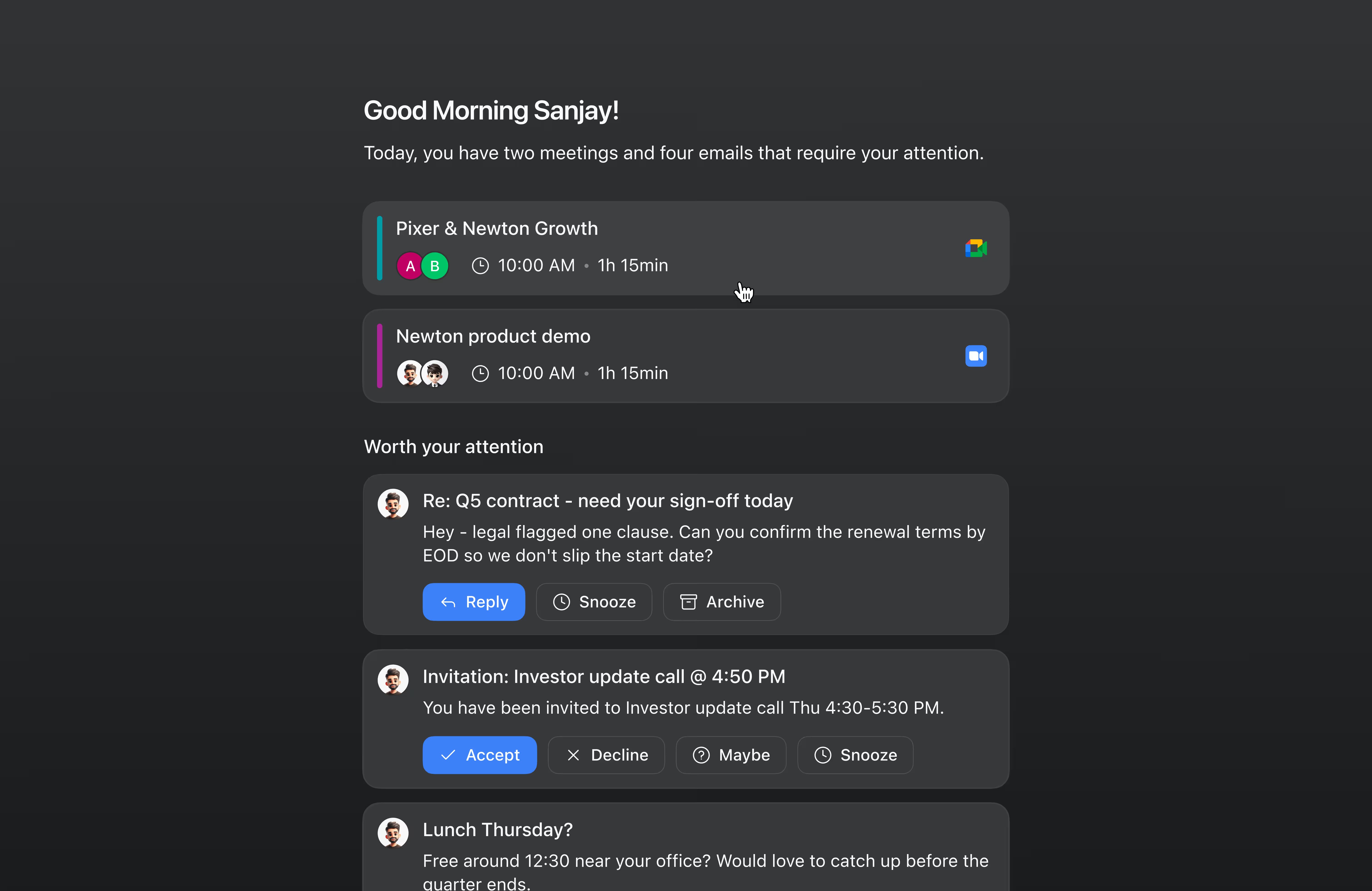
Today is a separate, full-screen view in Newton that shows only the emails worth your attention right now. Instead of listing mail newest-first, Today ranks each new email by how much it needs you, and puts the most useful action for it right on the card - so you can clear what matters in a few clicks and get out.
Today is off by default. You turn it on in Settings, and you can turn it off at any time.
What Today gives you
- Ranked by importance, not by time. Every new email that arrives is scored, and the ones that need you sit at the top.
- One card per conversation. A thread that received several messages still shows as a single card.
- Suggested actions on every card. One primary action plus up to three alternatives, chosen for that specific email - Reply, Archive, Snooze, RSVP, Track parcel, Pay, Unsubscribe, and more.
- A clean exit. Today never replaces your inbox. Leave it and everything is exactly where you left it.
Where Today is available
The Today view is part of Newton for Mac and Windows. The on/off switch also appears in the mobile app under Settings → Supercharge and syncs across your devices, but the Today view itself is desktop-only for now.
Turn Today on
- Open Settings - press
⌘ ,on Mac orCtrl ,on Windows. - Go to the Supercharge tab.
- Switch on Enable Today.
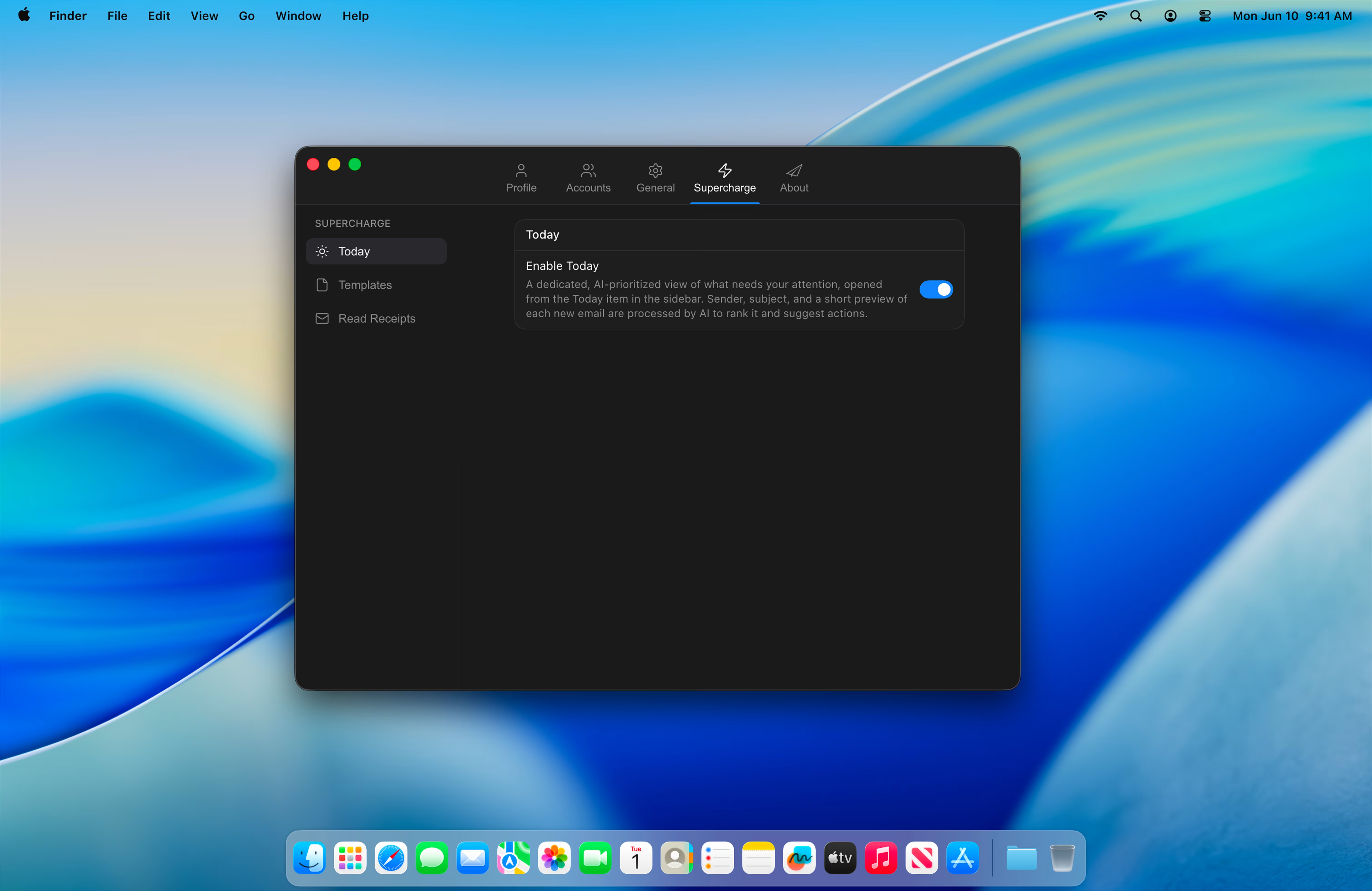
Today starts working on mail that arrives after you switch it on. It does not go back and re-rank the emails already sitting in your inbox, so the view may be empty for a little while at first.
The setting applies to your Newton account, so all of your connected mailboxes - Gmail, Outlook and IMAP - are covered as soon as it is on.
Open and close Today
| To do this | Do this |
|---|---|
| Open Today | Press T from your inbox |
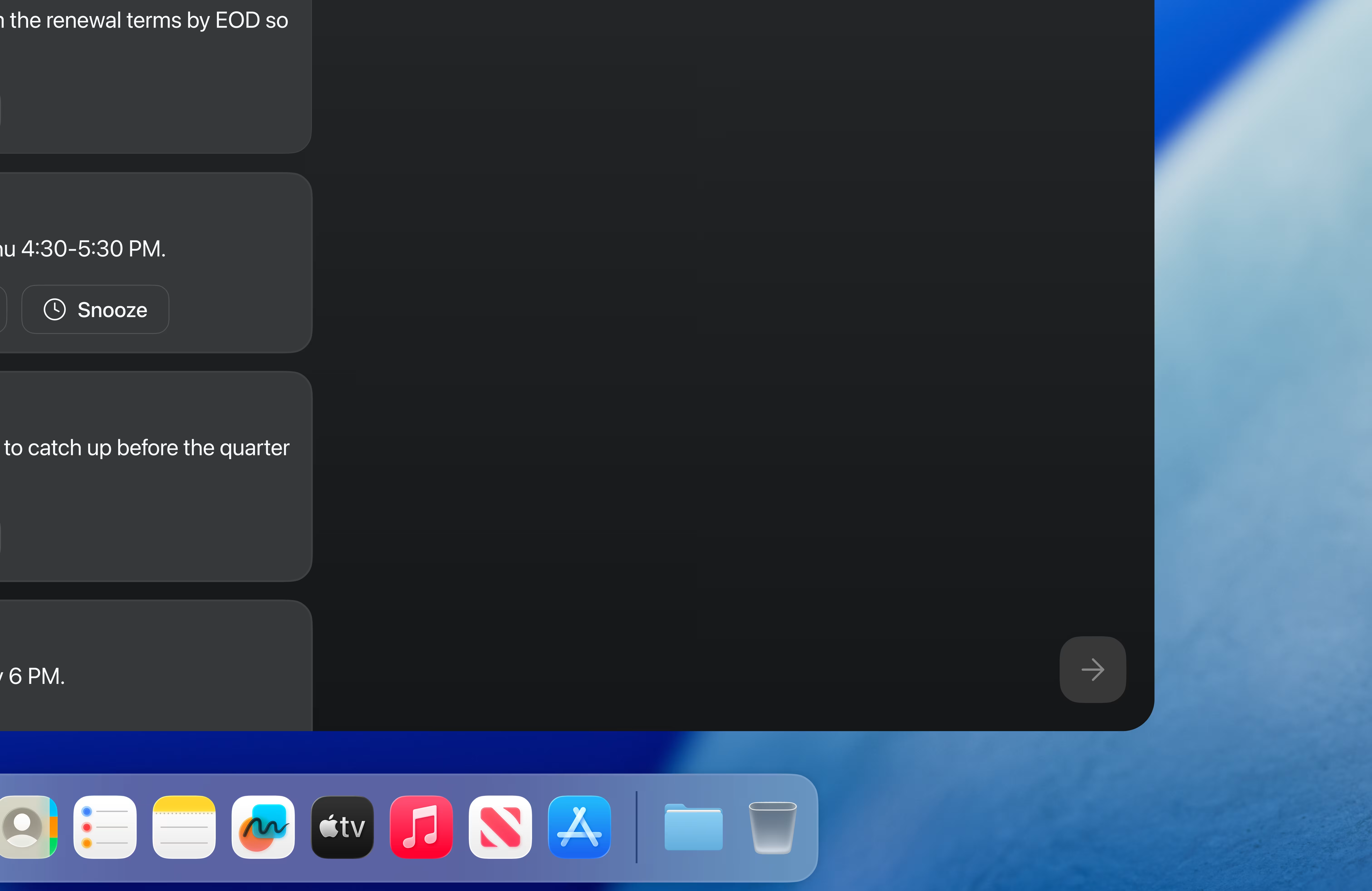
| Go back to the inbox | Press T again, press Esc, or click the round arrow button at the bottom right |
Today can also open on its own. When new prioritized emails come in, Newton may bring Today forward for you - but only when you are clearly not in the middle of something: you are on the inbox, no email or dialog is open, and either the Newton window is in the background or you have not touched the keyboard or mouse for at least a minute. It will never interrupt you while you are reading or writing.
What is on a card
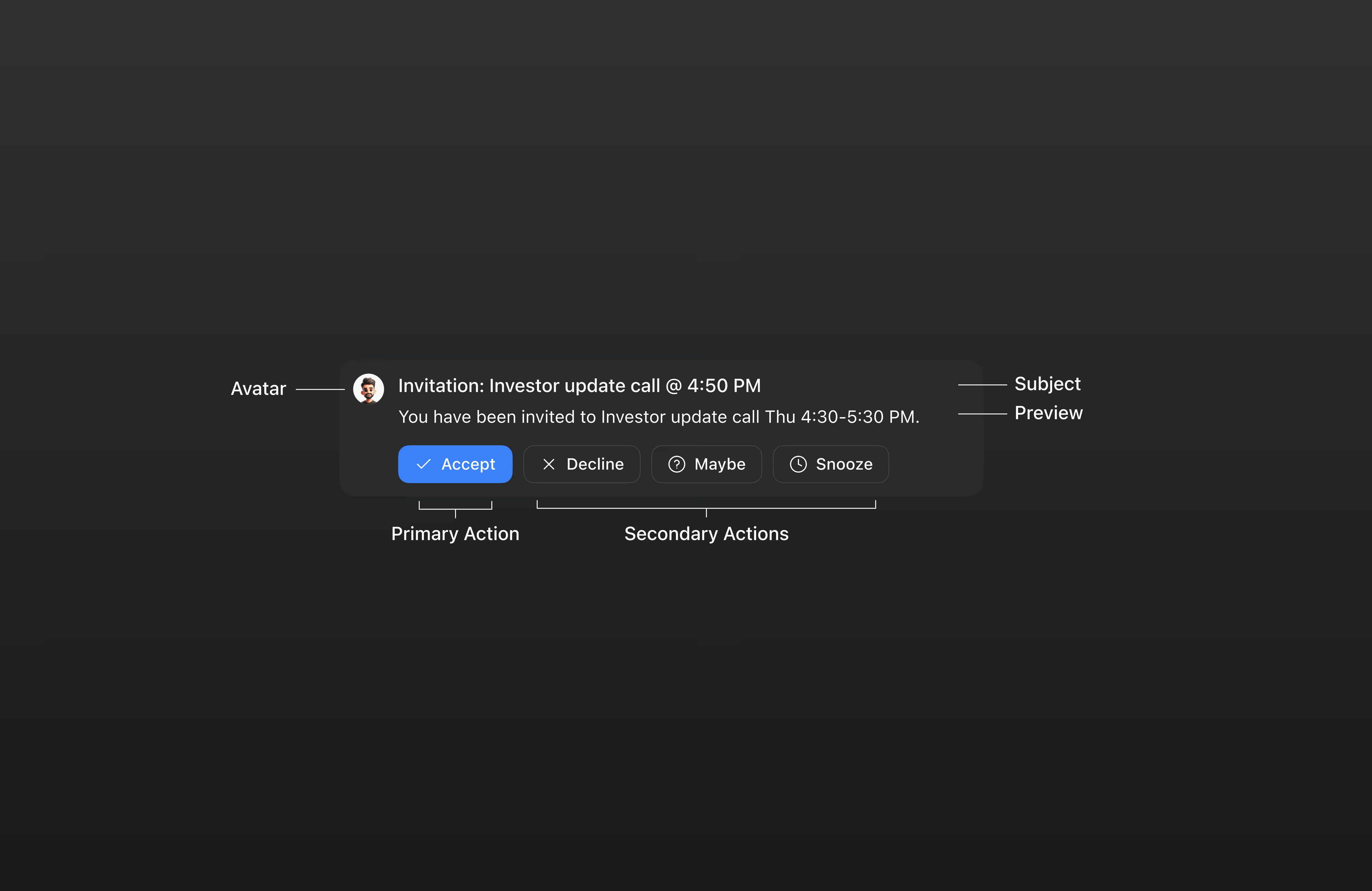
Each card is one conversation:
- Sender avatar - who it is from
- Subject - the conversation subject
- Preview - the first line or two of the message
- Action buttons - the suggested primary action first (highlighted), then the alternatives
Click anywhere on the card to open the full conversation in your inbox. Right-click a card for the same menu you get on an inbox row - archive, delete, star, mark read or unread, snooze, move to, and reply.
What each action does
Some actions finish the job right on the card. Others open the email so you can complete them in the normal mail view.
| Action | What happens |
|---|---|
| Archive | Archives the conversation immediately and removes the card |
| Snooze | Snoozes the conversation until tomorrow at 9:00 AM and removes the card |
| Delete | Moves the conversation to Trash and removes the card |
| Mark read | Marks it read-the card stays, so you can still act on it |
| Star | Stars the conversation-the card stays |
| Dismiss | Removes the card from Today only. The email itself is untouched and stays in your inbox |
| Reply, Reply all, Forward | Opens the conversation in your inbox so you can write your response |
| Accept, Decline, Maybe, Add to calendar | Opens the invitation email so you can respond to it |
| Track parcel, Pay, View, Unsubscribe, Mute, Block | Opens the email so you can follow the link or finish the task there |
How Newton decides what matters
Every new email gets a score from 0 to 100 and a category. Cards are shown highest score first.
| Score | What it means |
|---|---|
| 80–100 | Needs you today-a direct question from a person, an approval or sign-off request, a deadline today or tomorrow, a meeting invite |
| 50–79 | Worth attention but not urgent-a personal message, or a reply someone is probably expecting |
| 20–49 | Informational-receipts, payment confirmations, shipping updates, relevant automated notices |
| 0–19 | Bulk-newsletters, promotions, marketing, no-reply mail |
Each email is also filed into one category, which shapes the actions you are offered: action required, meeting invite, personal, finance, shipping, newsletter, promotion, or other.
Low-scoring mail is not hidden - it simply sinks to the bottom of the list, so the top of Today is always the part that matters.
Cards clean themselves up
You never have to tidy Today.
- Handle it anywhere, it disappears here. If you archive, snooze or delete the email on another device - or in another mail app - the card drops off Today after the next sync.
- Act on a card and it goes. Archive, Snooze, Delete and Dismiss all remove the card so it cannot come back.
- Everything expires. Rankings are automatically deleted about 7 days after they are created, whether you acted on them or not.
- Only inbox mail shows. Anything already archived, snoozed or deleted is never surfaced.
Your privacy
What is used, and what is kept
- Ranking looks only at the sender, subject line and the short preview text of a new email. The full message body, attachments and images are never used.
- Only the result is stored - the score, the category and the suggested actions. No email content is stored with it.
- The subject, preview and sender you see on a card are read from the mail already synced to your device.
- Stored rankings are automatically deleted after about 7 days.
- Turn the Supercharge toggle off and analysis stops entirely - nothing new is processed.
Frequently asked questions
1. Today is empty - is something broken?
Probably not. Today only ranks mail that arrives after you switch it on, and it only shows what is still sitting in your inbox. An empty Today means nothing new has come in that needs you - the view says so directly: "Nothing needs your attention right now."
2. Why don't my older emails appear?
Today works on new mail from the moment you enable it. It does not go back and rank your existing inbox.
3. Today opened by itself. Why?
When new prioritized mail arrives and you are not mid-task - you are on the inbox with nothing open, and Newton is either in the background or has been idle for at least a minute - Newton brings Today forward so you can see it. Press T, press Esc, or click the arrow at the bottom right to go back.
4. A card shows an email I already dealt with on my phone. Why?
The card disappears as soon as that change syncs back to your desktop. If it is still there, the sync has not completed yet.
5. Can I use Today on my phone?
Not yet. The on/off switch is in the mobile app under Settings → Supercharge and it syncs with your desktop, but the Today view itself is currently available on Mac and Windows only.
6. Does Today change my inbox or move my mail?
No. Today is a separate view over the mail you already have. Nothing moves unless you press an action button yourself.
7. How do I turn Today off?
Settings → Supercharge → switch off Enable Today. Analysis stops right away, and existing rankings expire on their own within about a week.
Can’t find what you are looking for?
Talk to us: hello@newtonhq.com